User guide
How to use Libkit
Libkit has three free tools for librarians. Libkit Flyers makes A4 flyers with QR codes. Libkit Slides makes presentations for teaching, events and screens. Libkit Folio lays out bulletins and newsletters. This guide shows all three, step by step. You don't need any technical knowledge.
Last updated:
Getting started
Open libkit.org in an up-to-date web browser: Chrome, Edge, Firefox or Safari. Libkit works on a computer, a tablet and a phone. There is nothing to install and no account to create.
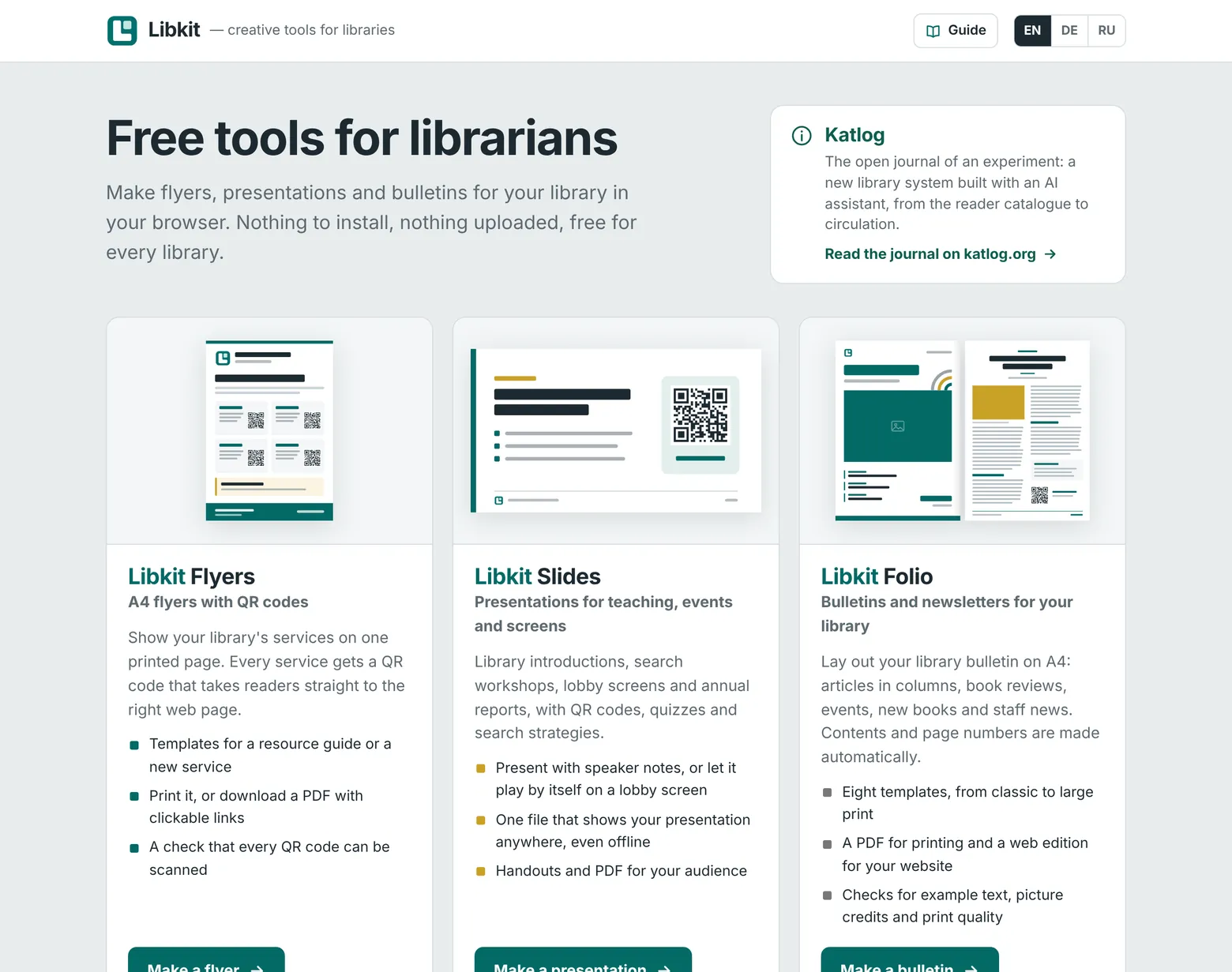
- Choose a tool: click Make a flyer, Make a presentation or Make a bulletin. The first time, you see an example that you can change into your own.
- Back to the start page: click the Libkit logo at the top left of each tool. Your work is saved before you leave.
- Language: the buttons speak English, German and Russian. Choose EN, DE or RU on the start page, or click the flag in a tool. All of Libkit switches together.
- Continue where you left off: once you have made something, the start page lists your latest flyers, presentations and bulletins. Click one to open it.
What you need
- Your library logo as an image file (PNG, JPG or SVG). This is optional.
- The web addresses of the services you want to show.
- For presentations: any pictures you want to use.
- For bulletins: your texts and photos, and the permission to publish them.
Part 1
Libkit Flyers
Libkit Flyers helps you make a one-page A4 flyer about the services of your library. Every service gets a QR code. Readers scan the code with their phone and go straight to the right web page.
1. Find your way around
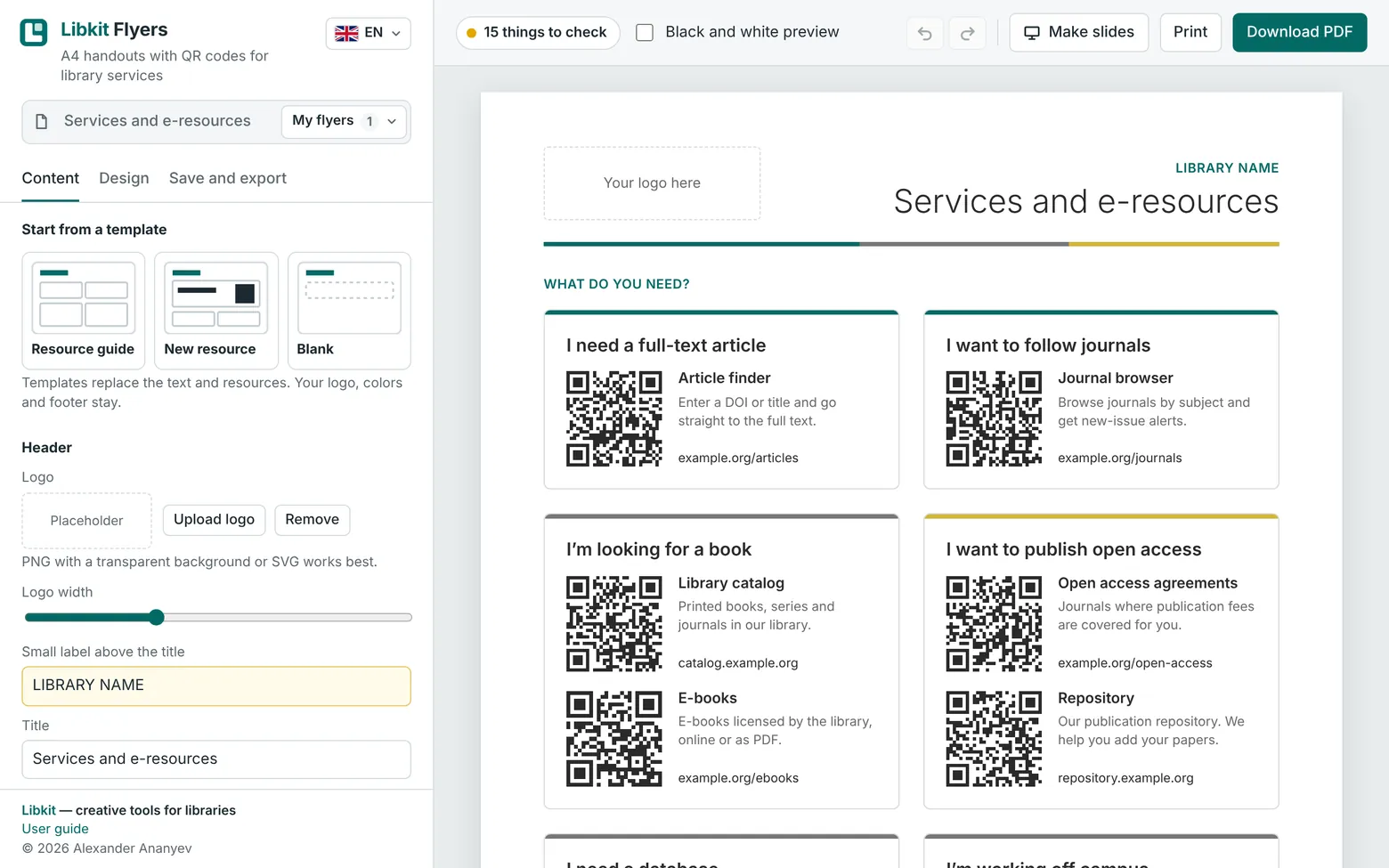 123456789
- 1 Flyer name and My flyers. The name of the flyer you are working on, and the list of all your flyers.
- 2 Tabs. Content for texts and links, Design for colors and layout, Save and export for files.
- 3 Fields. Type here to change the flyer. A yellow field still contains example text.
- 4 Check button. Tells you what still needs your attention. Click it to see the list.
- 5 Undo and Redo. Take back your last change, or bring it back again.
- 6 Make slides, Print and Download PDF. Make slides turns the flyer into a presentation (see Flyers and Slides together).
- 7 Language of the buttons.
- 8 Preview. Shows your flyer exactly as it will be printed. It changes while you type.
- 9 Libkit. Back to the start page.
2. Add your library's details
Everything in this step is on the Content tab.
- Logo: click Upload logo and choose your logo file. Use the Logo width slider to make it bigger or smaller. If you don't want a logo, click Remove.
- Small label above the title: type the name of your library.
- Title: for example “Services and e-resources”.
- Footer: scroll down to the end of the Content tab. Enter your address, e-mail address, phone number and opening hours.
Fields with a yellow background still contain example text. The yellow disappears as soon as you type your own text.
3. Add your services
The flyer is made of sections, for example “I'm looking for a book”. Each section contains one or more resources, for example “Library catalog”. Click a section heading to open it. For each resource, fill in:
- Name: short, for example “Library catalog”.
- Description: one or two short lines. The small counter shows how much space you have, for example 54/60.
- Link: the web address of the service. The easiest way: open the page in your browser, copy the address from the address bar (Ctrl+C, on a Mac ⌘C) and paste it into this field (Ctrl+V, on a Mac ⌘V). You can also enter an e-mail address or a phone number.
- Printed address (optional): a shorter version of the address to print under the description. Leave it empty to print the link itself.
The QR code is made automatically.
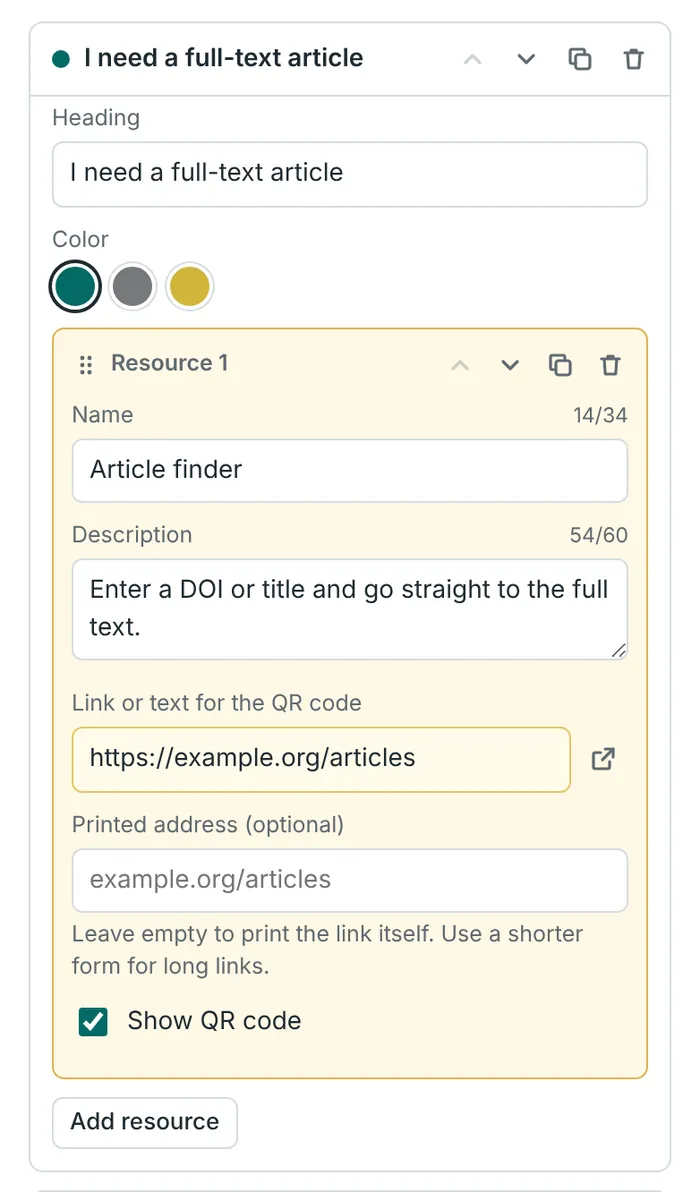
- A Hold and drag here to move the resource to another place, also into another section.
- B Move the resource up or down, make a copy, or delete it.
- C Open the link in a new tab to check that it works.
 ABC
ABCMore things you can do:
- Add resource adds a new resource to a section. Add section (below the last section) adds a new section.
- Each section has a heading and a color. The small buttons next to the section heading move, copy or delete the whole section.
- Box at the bottom: an optional box for a contact, for example for interlibrary loan. Untick Show the box if you don't need it.
- Start from a template (at the top of the Content tab) gives you a different starting point: Resource guide, New resource or Blank. A template replaces the texts and resources. Your logo, colors and footer stay.
4. Choose the look
Open the Design tab.
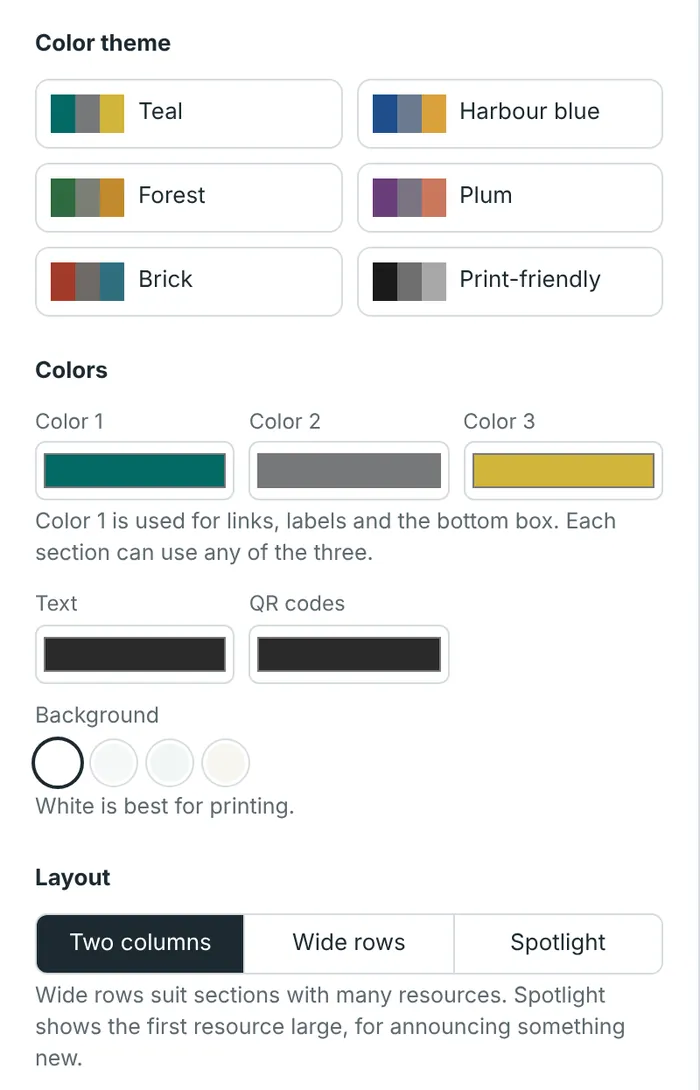
- Color theme: click a theme to change all colors at once. You can also pick your own colors under Colors.
- Background: white is best for printing.
- Layout: Two columns suits most flyers. Wide rows suits sections with many resources. Spotlight shows the first resource very large, for example to announce something new.
- Header: where the logo and the title go, and the color strip under the header.
- Typeface and language: choose the language your flyer is written in, so that long words are split correctly at the end of a line.
- QR code size: Medium works well. Choose Small if the content doesn't fit on one page.
5. Check your flyer
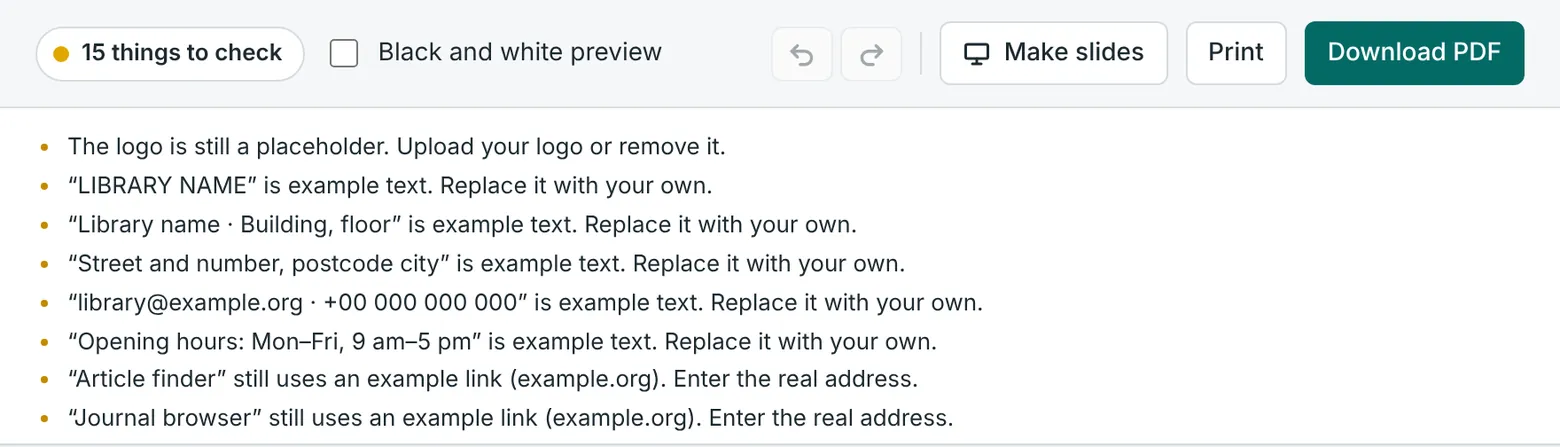
The check button at the top tells you whether the flyer is ready:
- Green, “Ready to print”: everything looks good.
- Yellow, “… things to check”: there is still example text or an example link (example.org), or something may not look right.
- Red, “… issues to fix”: for example, the content doesn't fit on one A4 page, or a QR code can't be scanned.
Click the button to open the list. Resources that need your attention have a yellow frame on the Content tab.
Test the QR codes: point your phone camera at a QR code in the preview on your screen. Your phone should offer to open the right page.
Black and white preview (next to the check button) shows how the flyer will look on a black-and-white printer.
6. Print or save as PDF
- Download PDF (top right): best for e-mail and for your website. The links in the PDF can be clicked.
- Print (top right): sends the flyer to your printer. In the print window, choose A4 paper and 100 % (or “Actual size”). If colors or lines are missing, switch on Background graphics (in Chrome under More settings).
- Download image (PNG) (on the Save and export tab): for screens, your intranet or social media.
The files get the name of your flyer, which you can change at the top of the panel.
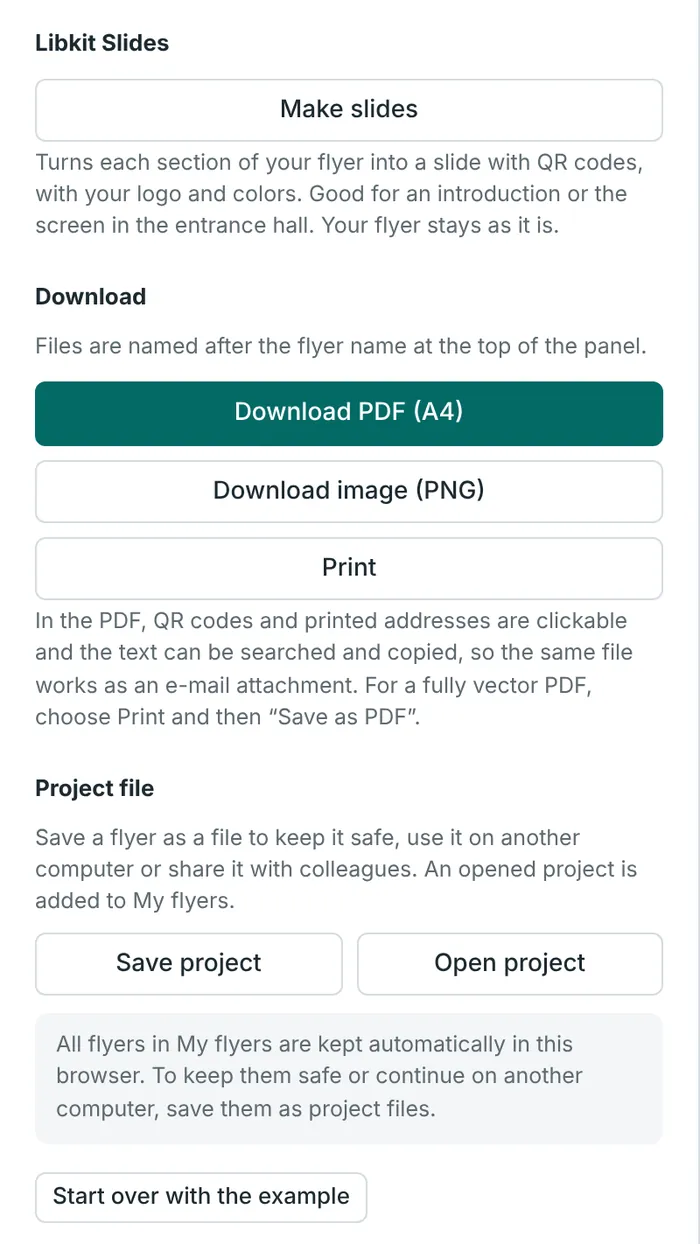
7. Your flyers are saved automatically
Every change is kept in your web browser. When you come back to Libkit, your last flyer is there.
My flyers: click My flyers at the top to see all your flyers.
- Click a flyer to open it.
- + New flyer starts a new flyer that already has your logo, colors and footer.
- Duplicate makes a copy of the open flyer.
- The bin deletes a flyer. Clicked it by mistake? Click Undo in the message at the bottom of the screen.
- To rename a flyer, click its name in the bar at the top and type.
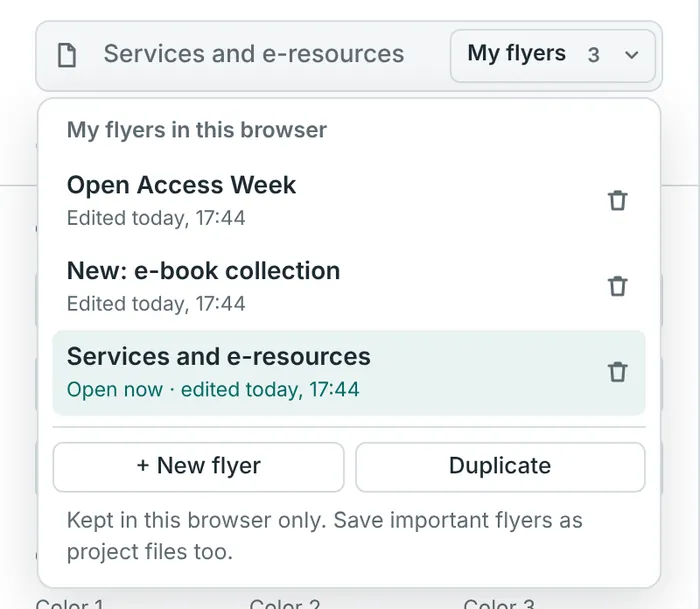
Keep a backup and share with colleagues
Your flyers are kept only in this browser on this device. You won't see them in another browser, on another computer or in a private window. They are also lost if the browser data is deleted. So for flyers that matter, keep a backup:
- Open the Save and export tab.
- Click Save project. A small file ending in
.jsonis downloaded. Keep it somewhere safe.
To continue on another computer, or to give a flyer to a colleague, send them the .json file. On the other computer, open Libkit Flyers, click Open project and choose the file. The flyer is added to My flyers there.
Made a mistake?
Click Undo (the curved arrow at the top right) or press Ctrl+Z (on a Mac ⌘Z). To bring a change back, click Redo or press Ctrl+Y (on a Mac ⇧⌘Z). Each flyer remembers its own changes as long as the page stays open. To start again from the beginning: Save and export tab → Start over with the example. You can undo this, too.
8. On a phone or tablet
On a narrow screen, Libkit Flyers shows one part at a time. Switch with the bar at the bottom of the screen:
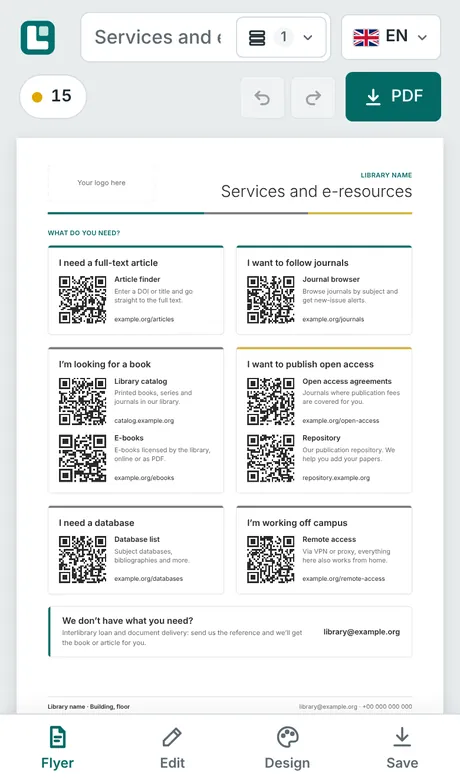
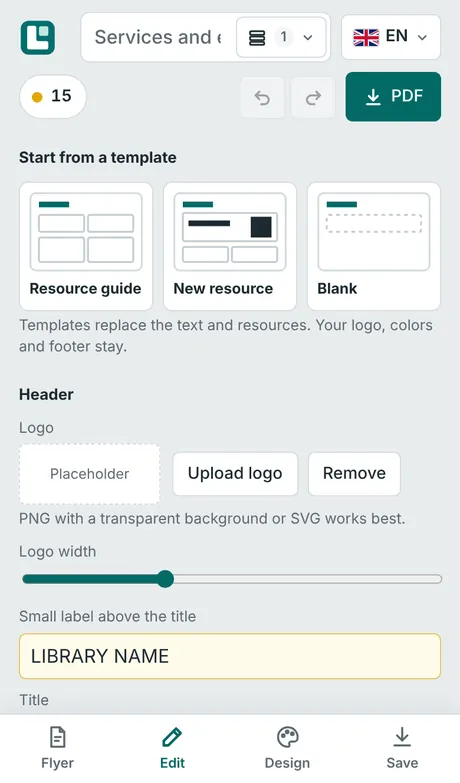
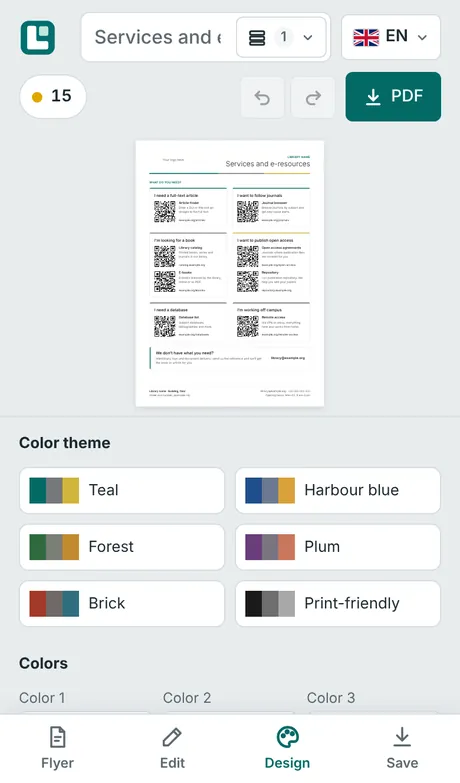
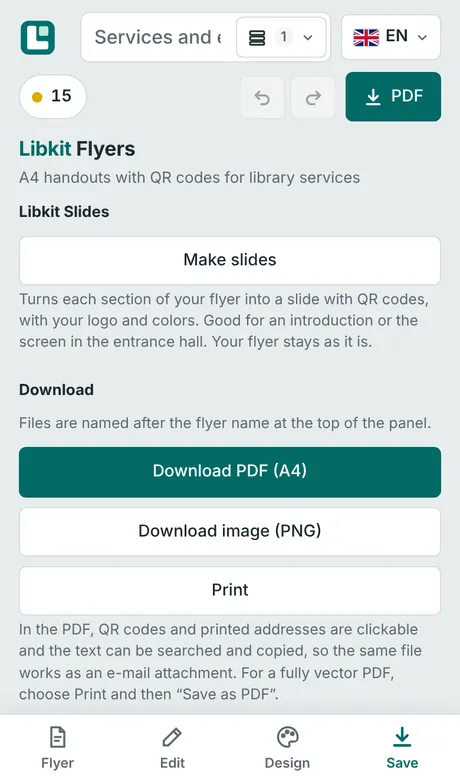
- Flyer: the whole page. Under it you find the black and white preview.
- Edit: templates, texts and resources, as on the Content tab.
- Design: a small copy of the flyer stays at the top while you choose colors and layout.
- Save: PDF, image, printing, project files and Make slides.
The number at the top left is the check button. The PDF button next to it downloads your flyer.
Part 2
Libkit Slides
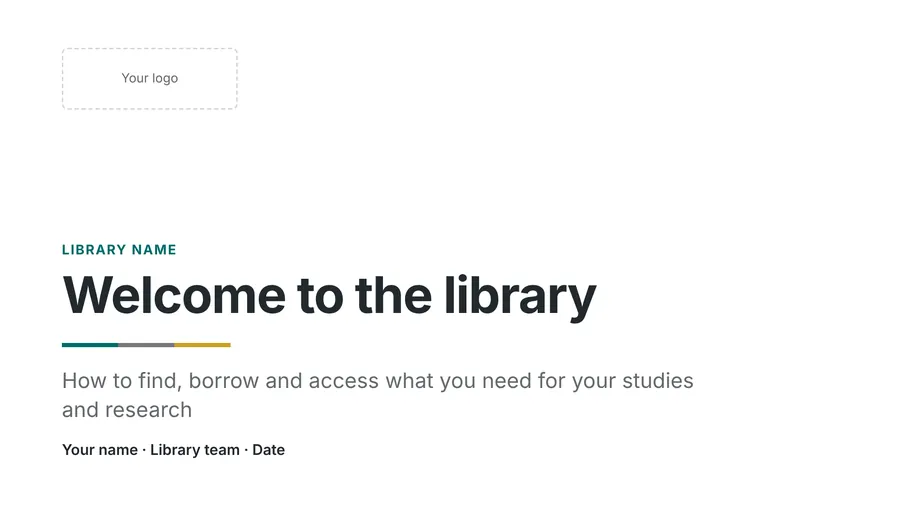
Libkit Slides helps you make presentations for your library: an introduction for new students, a workshop on literature search, a screen in the entrance hall, a talk at a conference or an annual report. Slides can carry QR codes. People in the room scan them with their phone and go straight to a database, a service or a registration page.
1. Find your way around
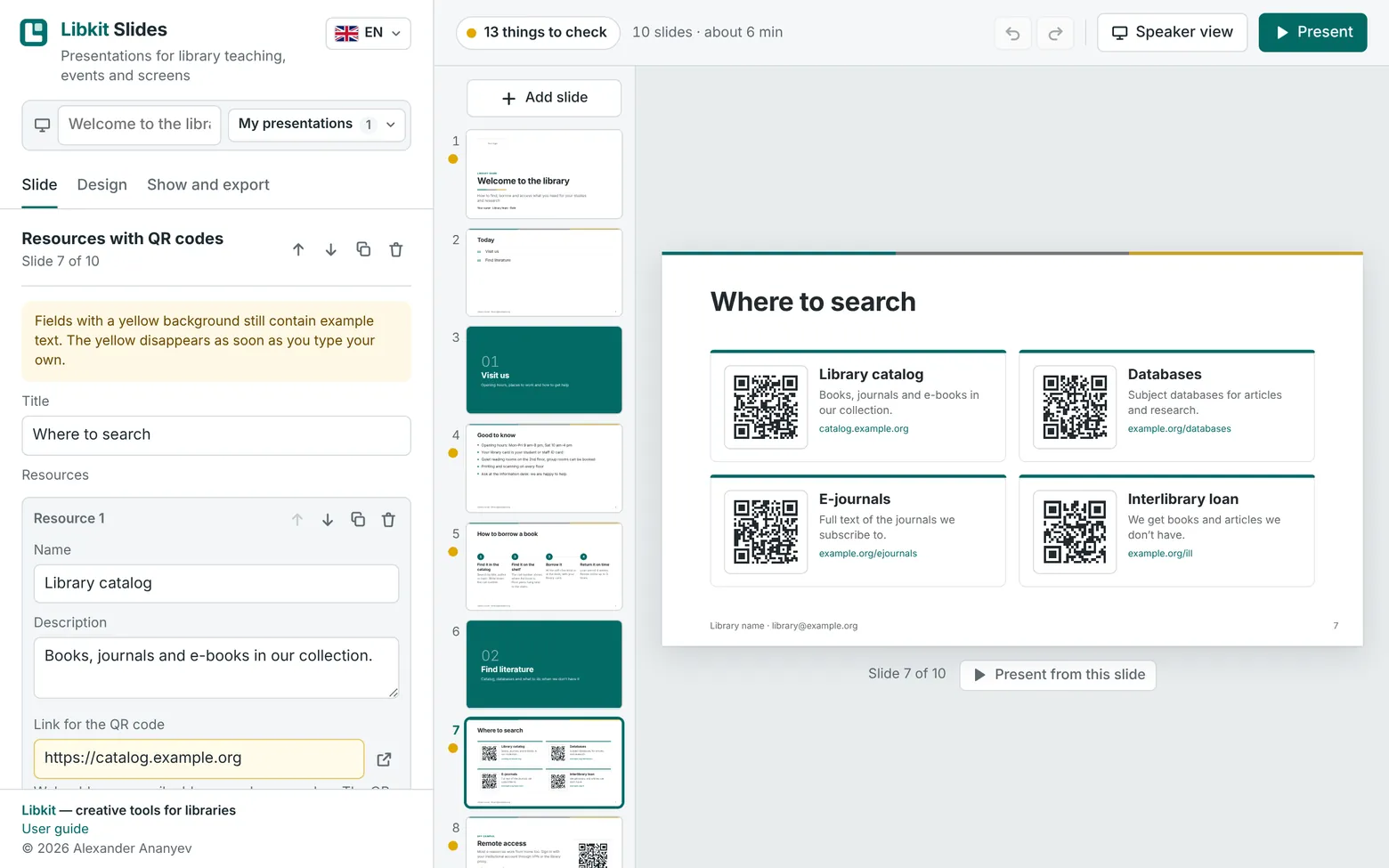 123456789101112
- 1 Presentation name and My presentations. The name of the presentation you are working on, and the list of all your presentations.
- 2 Tabs. Slide for the texts of the selected slide, Design for colors, logo and footer, Show and export for presenting and for files.
- 3 Fields. Type here to change the selected slide. A yellow field still contains example text.
- 4 Check button. Tells you what still needs your attention. Click it to see the list.
- 5 Length. The number of slides and the estimated speaking time.
- 6 Undo and Redo.
- 7 Speaker view and Present. Start the show (step 8).
- 8 Slides. Click a slide to edit it. Drag a slide up or down to change the order.
- 9 Add slide. Adds a new slide after the selected one (step 4).
- 10 Preview. Shows the selected slide exactly as your audience will see it. It changes while you type.
- 11 Language of the buttons.
- 12 Libkit. Back to the start page.
2. Start from a template
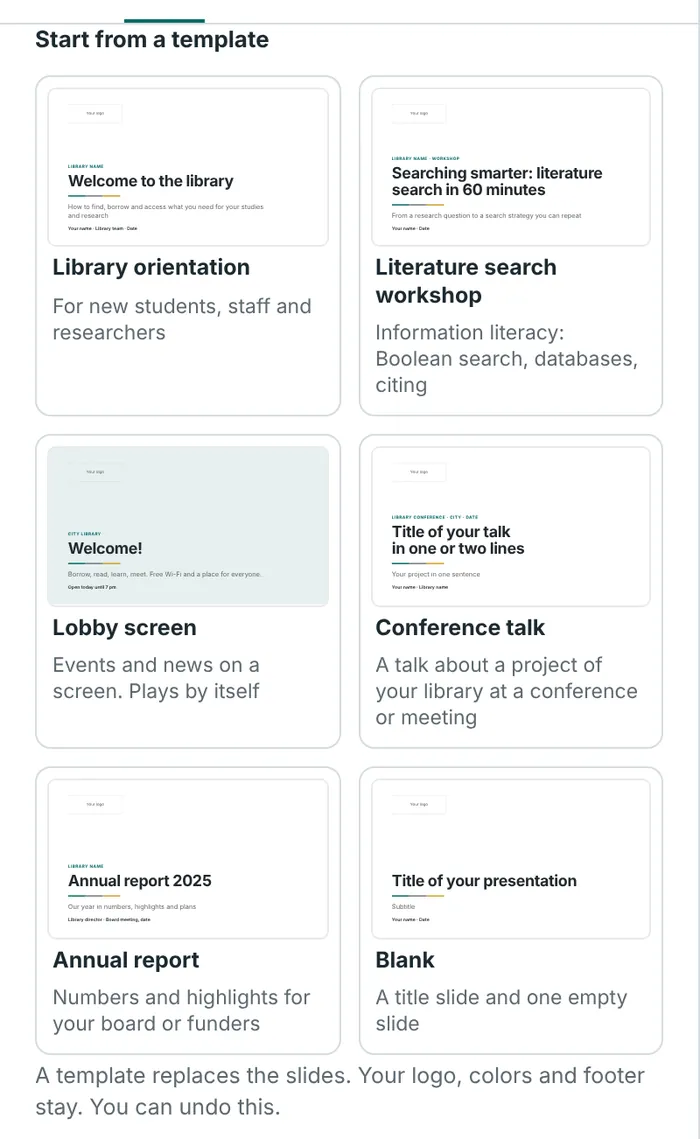
Open the Design tab. Under Start from a template you find six starting points:
| Template | Made for |
|---|---|
| Library orientation | New students, staff and researchers: opening hours, borrowing, where to search, remote access, a quiz. |
| Literature search workshop | Teaching information literacy: search terms, a search strategy, Boolean operators, databases, citing. |
| Lobby screen | A screen in the entrance hall: events, news and opening hours. Plays by itself (step 10). |
| Conference talk | A talk about a project of your library at a conference or meeting. |
| Annual report | Numbers, highlights and plans for your board or funders. |
| Blank | A title slide and one empty slide. |
A template replaces the slides. Your logo, colors and footer stay. You can undo this. To start a second presentation and keep the first one, use My presentations → New.
3. Edit a slide
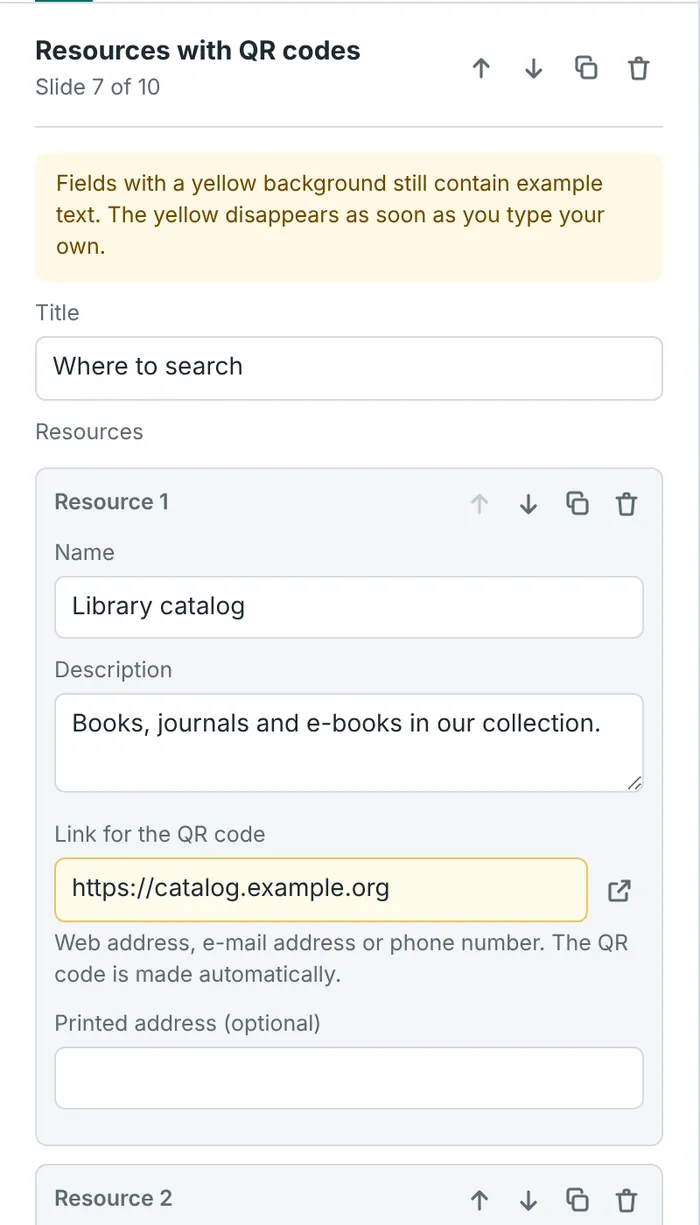
Click a slide in the list next to the preview. Its fields appear on the Slide tab.
- A Move the slide up or down, make a copy, or delete it.
- B Some slides have a list, for example of resources or steps. Move, copy or delete each entry here. To add one, use the button below the list.
- C Open the link in a new tab to check that it works.
- D A yellow field still contains example text.
Writing tips
- Points: one point per line. Start a line with two spaces to make a sub-point.
- Emphasis:
**bold**for bold,*italic*for italic. - Links: type a web address, an e-mail address or a phone number. The QR code is made automatically.
- Too much text? It is made smaller so that it fits. The line under the preview tells you by how much. If the text gets too small, split the slide in two.
 ABCD
ABCDBelow the fields
- Show one by one when presenting (on lists, steps and similar slides): the points appear one after another, with each click.
- Look of this slide: a normal, tinted or colored background, and the accent color of this slide.
- Hide this slide in the show: the slide stays in your presentation but is skipped when you present.
- Speaker notes: what you want to say. Only you see them: in the speaker view and on the handouts.
4. Add slides
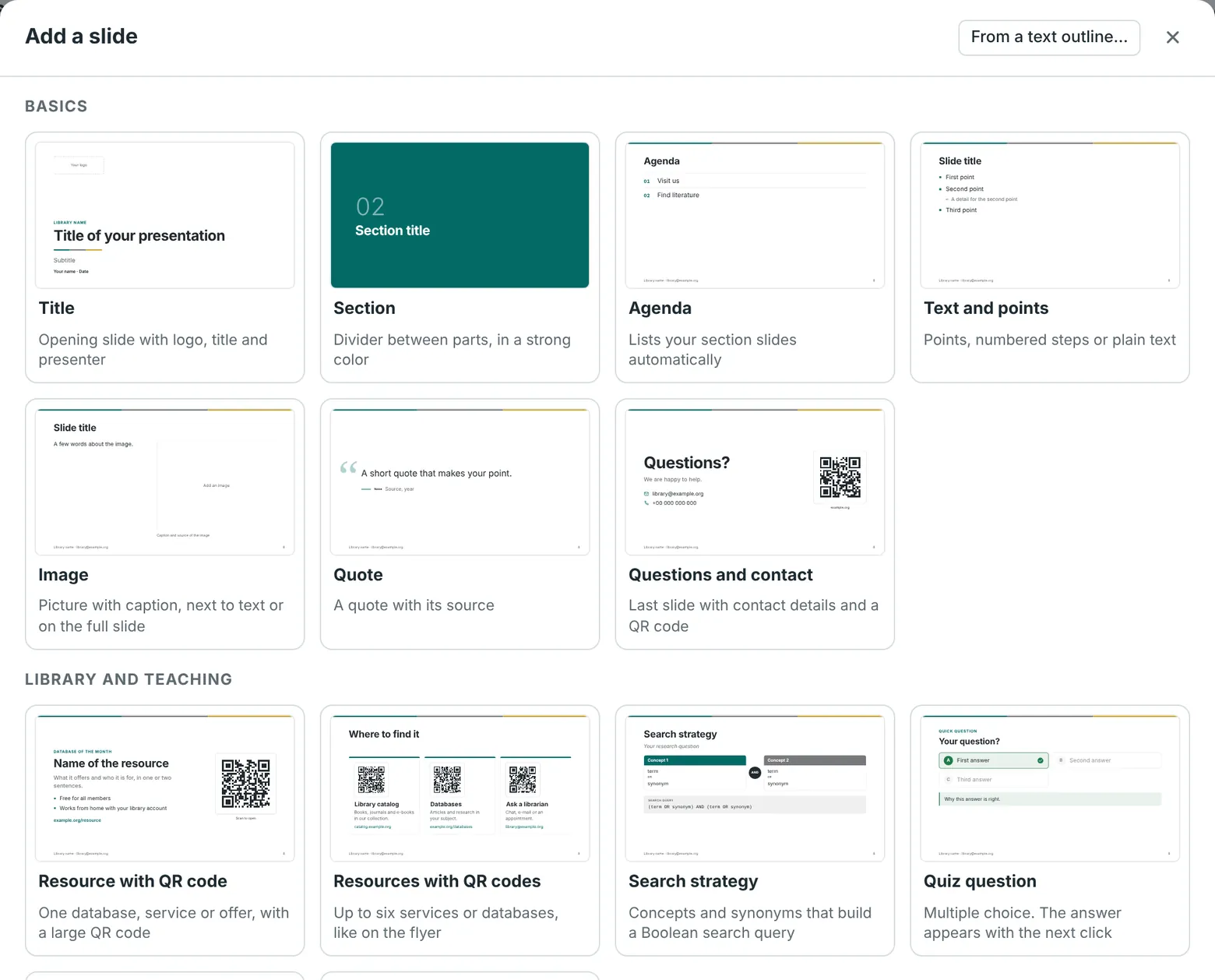
Click Add slide above the list of slides and choose a kind of slide. The new slide comes after the selected one and already contains example text.
 1
1Basics
- Title
- Section
- Agenda: lists your section slides by itself
- Text and points
- Image
- Quote
- Questions and contact
Library and teaching
- Resource with QR code
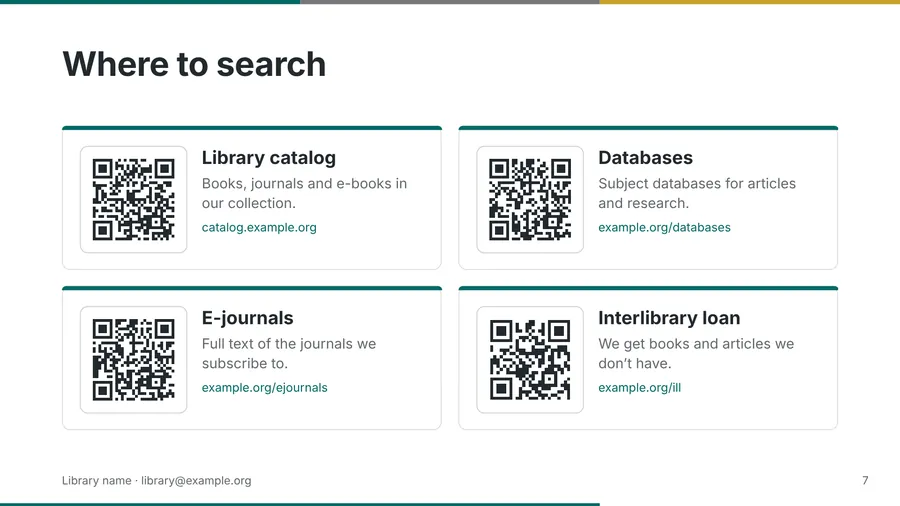
- Resources with QR codes (up to six)
- Search strategy
- Quiz question
- Step by step
- Event
Data and sources
- Key figures
- Comparison
- Timeline
- References
- Code
Pictures
On an Image slide, click Upload image, or drag a picture from your computer onto the preview. Large photos are made smaller automatically. Describe the picture in the field Description for screen readers, so that people who can't see it know what it shows.
From a text outline 1
Already have your talk as text? Click From a text outline… in the same window and type or paste it:
# Library orientation
## What we offer
- Books, e-books and journals
  - Group rooms can be booked
Note: Mention the opening hours.
# makes a title or section slide, ## a normal slide, - a point, two spaces before - a sub-point, > a quote and Note: a speaker note.
5. Slides made for libraries
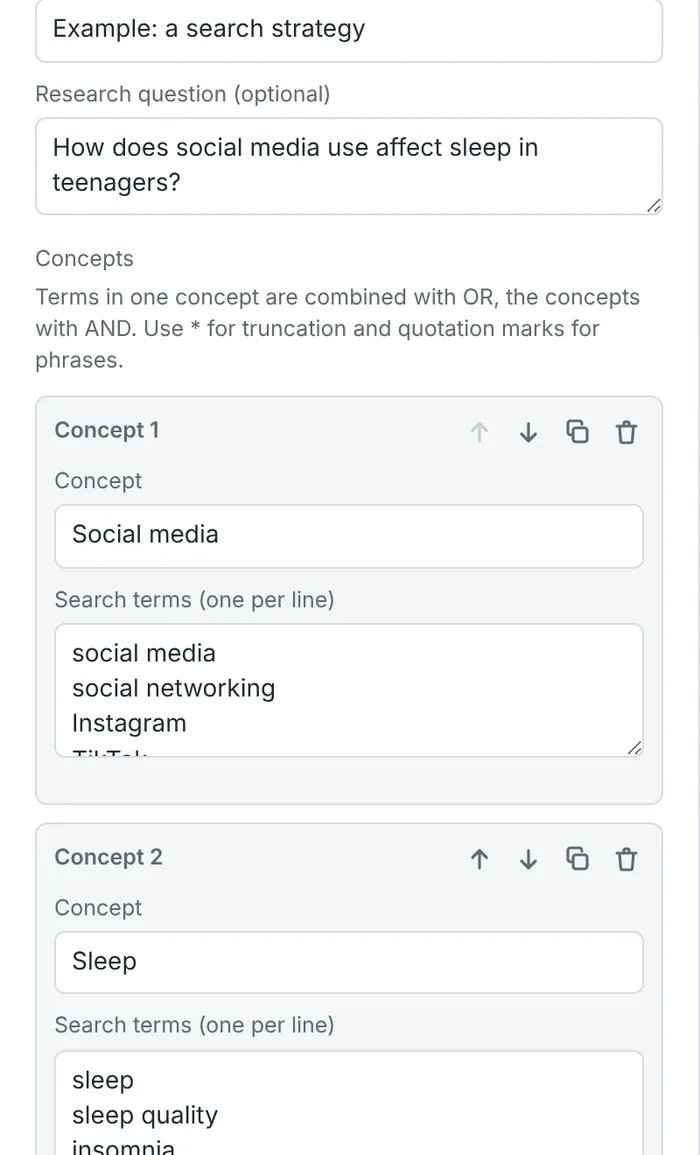
Search strategy
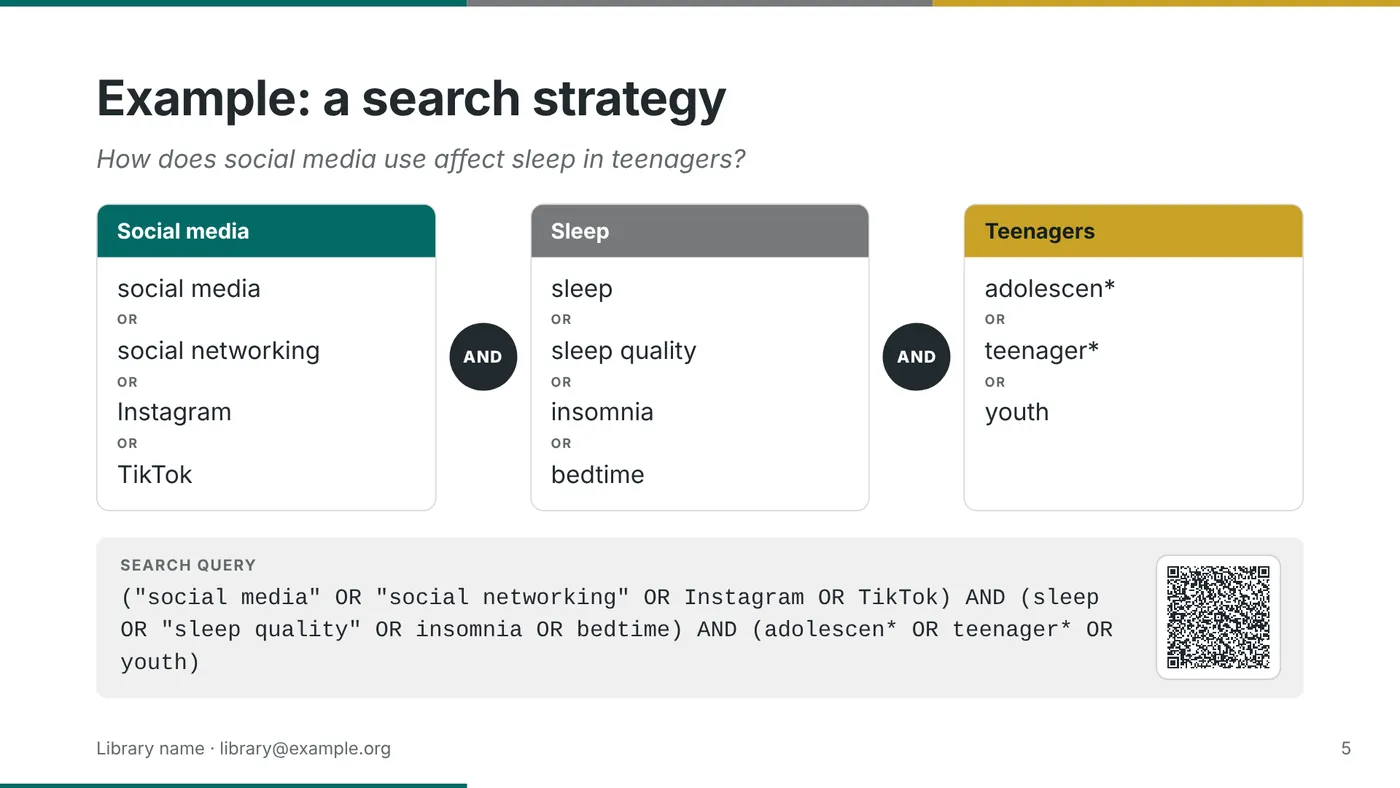
Show how to build a search. Enter the research question and two to four concepts. For each concept, type the search terms, one per line.
The slide shows the terms in columns and builds the search query for you: terms in one column are joined with OR, the columns with AND. Terms with spaces get quotation marks. Use * for truncation, for example adolescen*.
Search link of your catalog (optional): enter the address of a search in your catalog and put {q} where the search words go, for example https://catalog.your-library.org/search?q={q}. The slide then gets a QR code that runs this search.
Tip: search for any word in your catalog, copy the address from the address bar and replace your word with {q}.
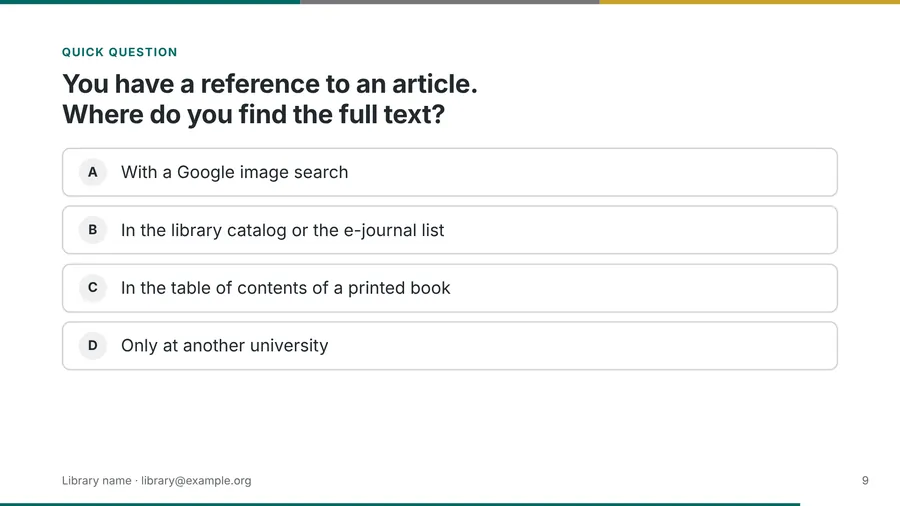
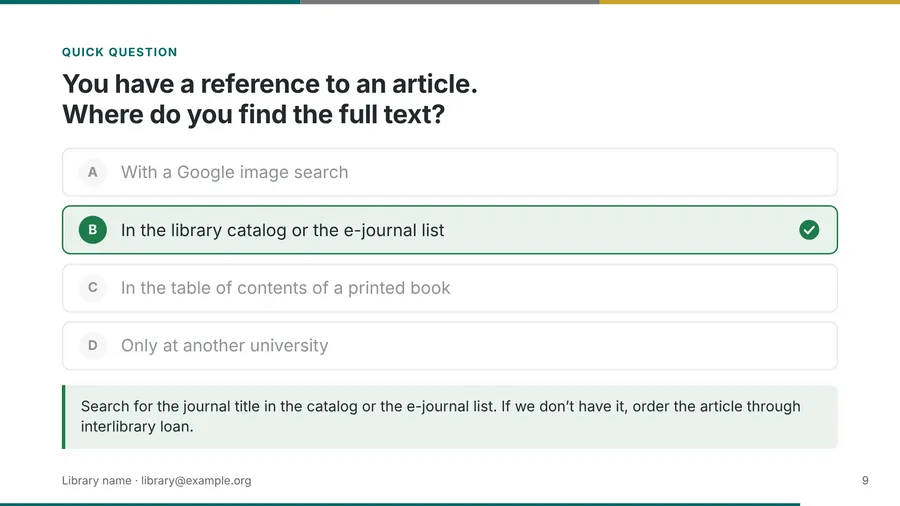
Quiz question
Type the answers, one per line, and choose the correct answer. When you present, the question appears first. The next click marks the correct answer and shows the explanation. Let the audience vote with a show of hands first. For a poll without a right answer, choose No correct answer (poll).
More slides for libraries
- Resources with QR codes: up to six services, each with its own QR code, like on the flyer.
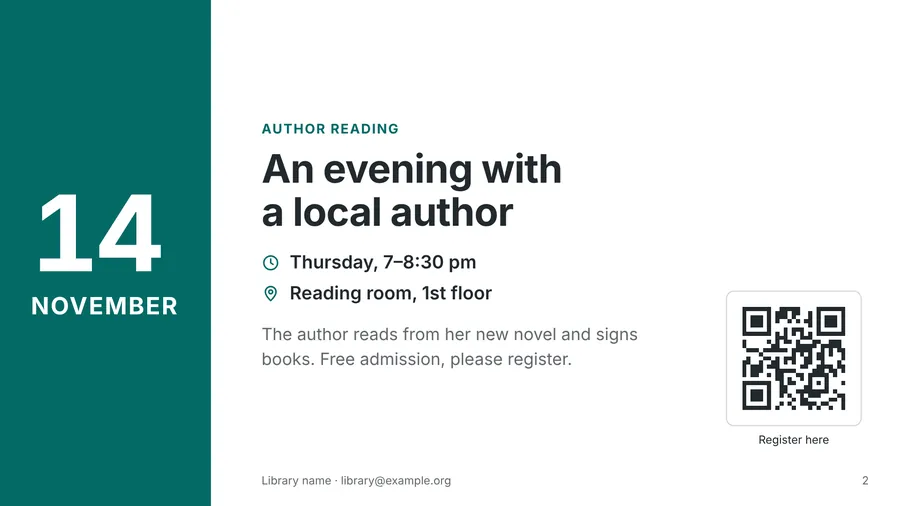
- Event: date, time, place and a QR code for registration.
- References: one reference per line. DOIs and web addresses become links.
6. Choose the look
Open the Design tab.
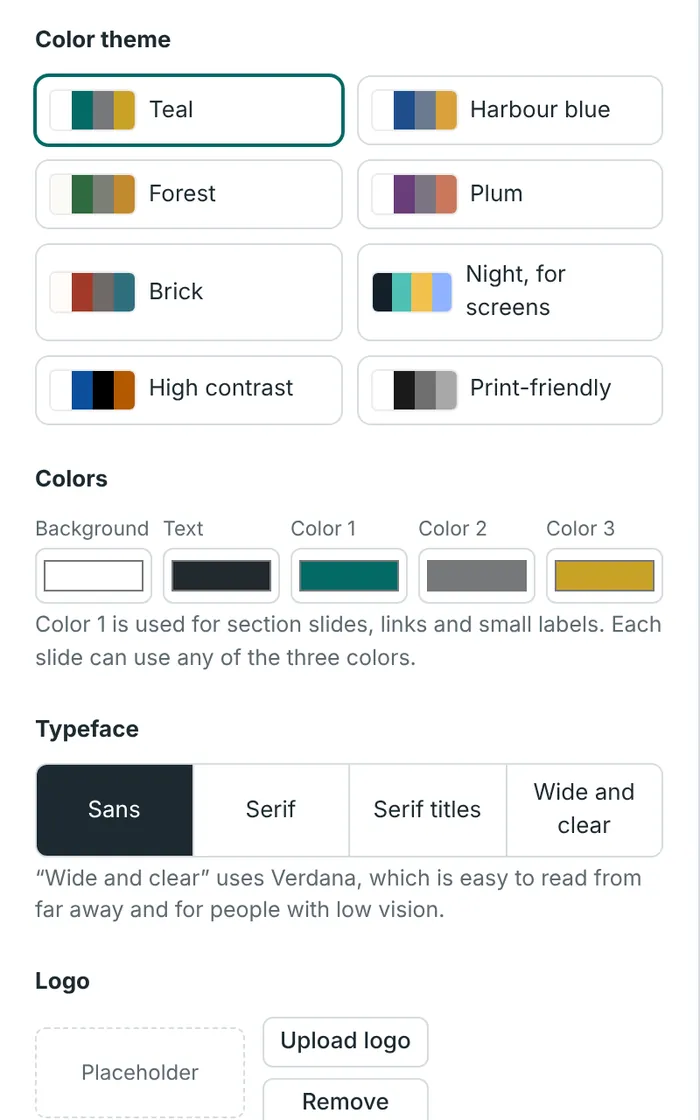
- Color theme: changes all colors at once. Night suits screens; High contrast is easiest to read. You can also pick your own colors under Colors.
- Typeface: Wide and clear (Verdana) is easy to read from far away and for people with low vision.
- Logo: click Upload logo. It appears large on the title slide and small in the corner of the other slides. You can switch off the small logo.
- Footer: a short line at the bottom of each slide, for example the name of your library, and the slide numbers.
- Slide format: 16:9 suits most projectors and screens. Choose 4:3 for older projectors.
- Language of the slides: so that long words are split correctly and a few words on the slides, such as “Scan to open”, are in the right language.
- Transition: how one slide changes to the next.
7. Check your presentation
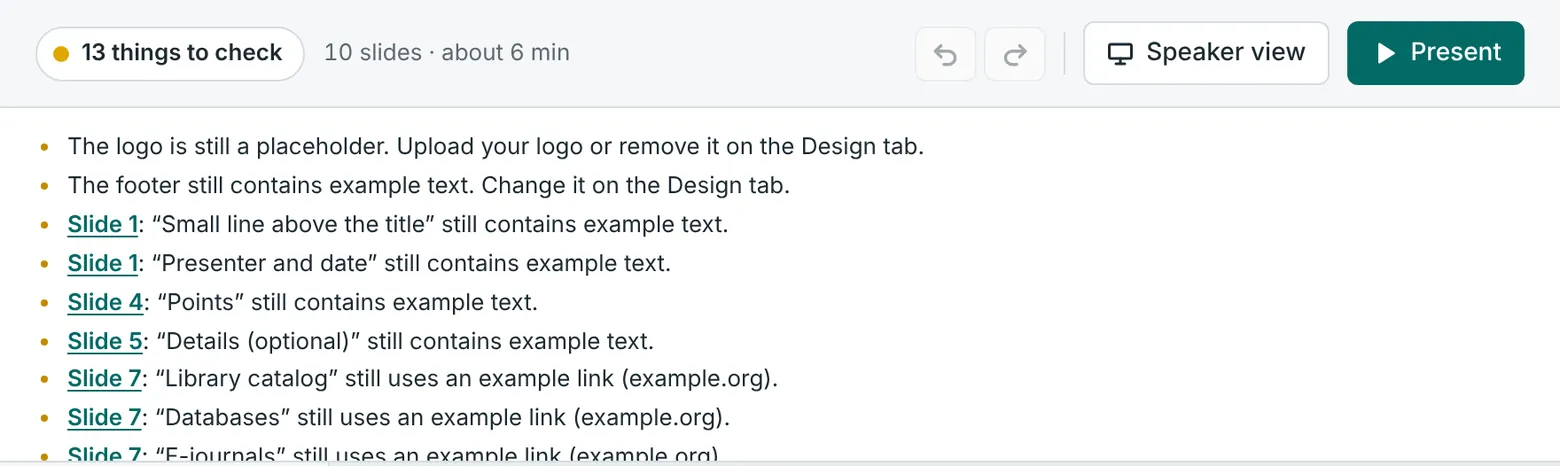
- Green, “Ready to present”: everything looks good.
- Yellow, “… things to check”: there is still example text or an example link (example.org), an image without a description, or a slide with a lot of text.
- Red, “… issues to fix”: for example, the text doesn't fit on a slide, or a link is too long for a QR code.
Click the button to open the list. Click a slide number in the list to go to that slide. Slides that need your attention have a dot in the list of slides.
Test the QR codes: point your phone camera at a QR code in the preview on your screen. Your phone should offer to open the right page.
8. Present
Present (top right) starts with the first slide. Present from this slide (under the preview) starts with the selected slide. The slides fill the screen.
| Key | What it does |
|---|---|
| → Space Page Down | Next point or slide. Most presentation clickers work too. |
| ← Page Up | Back |
| Home End | First or last slide |
| 5 Enter | Go to slide 5. Type any slide number. |
| O | Overview of all slides. Click one to go there. |
| B or . | Black screen, for a pause or a discussion. Press again to continue. |
| W | White screen |
| L | Laser pointer. A red dot follows your mouse. |
| S | Speaker view |
| F | Full screen on or off |
| ? | All keys |
| Esc | End the show |
When you move the mouse, a small bar with the same buttons appears at the bottom of the screen. On a touch screen, swipe left or right. Tip: F5 starts the show from the beginning, Shift+F5 from the selected slide, as in PowerPoint.
9. Speaker view
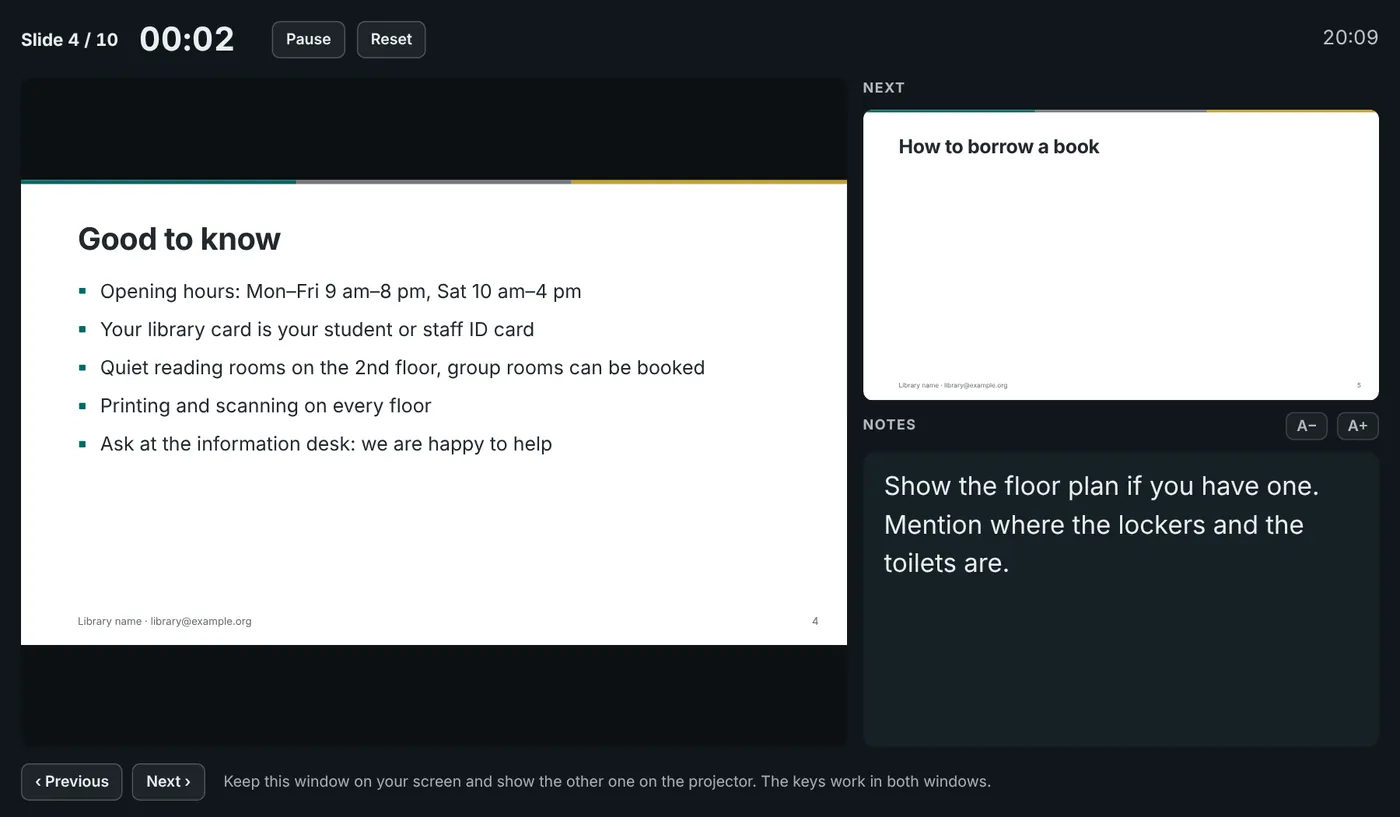
Click Speaker view at the top right. The slides fill this window, and a second window opens for you, with the current slide, the next slide, your notes and a timer.
- Connect the projector and set your computer to show different pictures on the two screens (Windows: Win+P → Extend; Mac: System Settings → Displays, mirroring off).
- Drag the slides window to the projector and press F for full screen.
- Keep the speaker view on your laptop. The keys work in both windows.
If your browser blocks the second window, the speaker view opens in the same window. Press S to switch between the slides and the speaker view.
10. A lobby screen that plays by itself
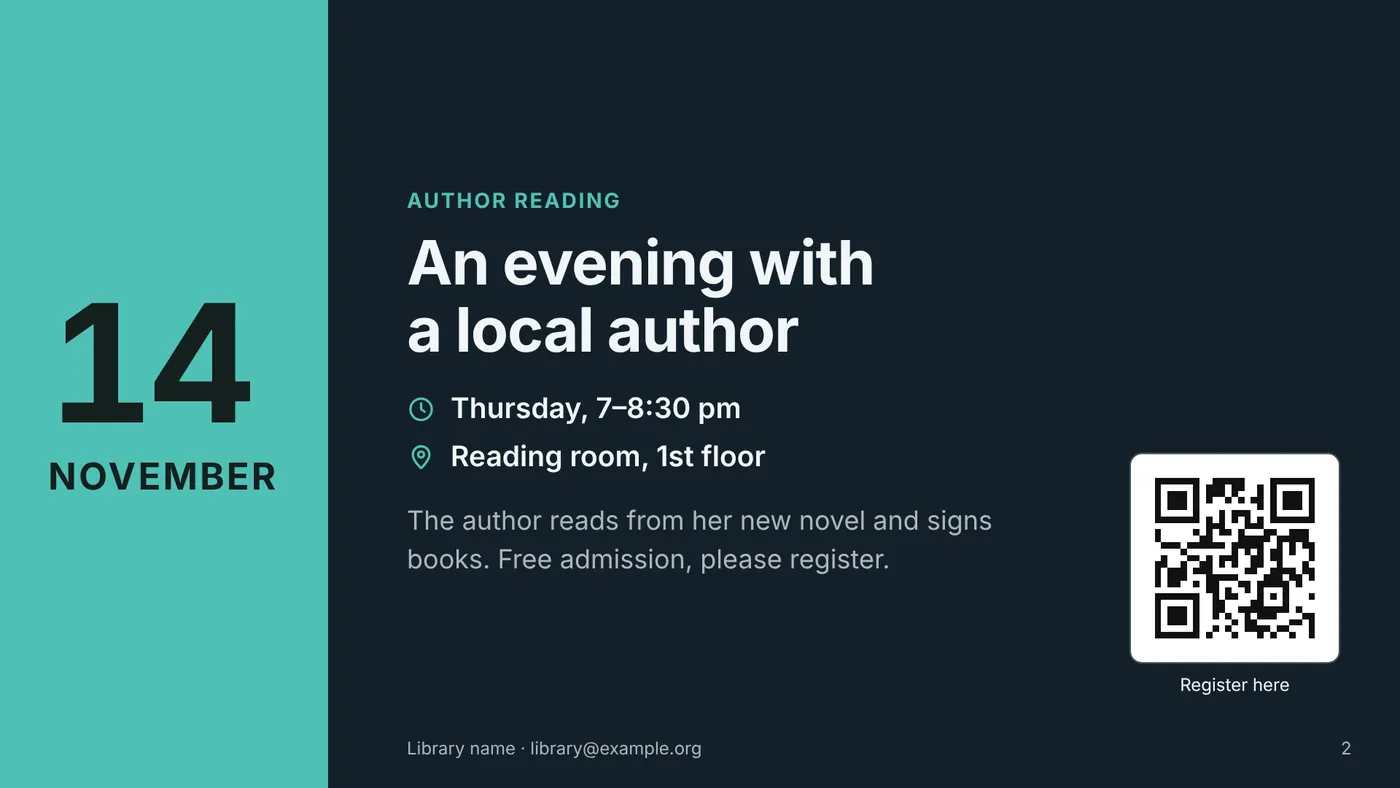
For a screen in the entrance hall or a display at an event:
- Open the Show and export tab.
- Under Lobby screen, choose how many seconds each slide stays, and whether to start again after the last slide.
- Click Start automatic show.
For a computer next to the screen, download the presentation (step 11) and tick Start as an automatic show when the file is opened first. Then double-click the file on that computer and press F for full screen. Press K to pause or continue, Esc to end the show.
Tip: start from the Lobby screen template and the Night theme. Keep the text short: people pass by and read for a few seconds. Switch off the screen saver of that computer.
11. Share, print or save as PDF
Everything is on the Show and export tab.
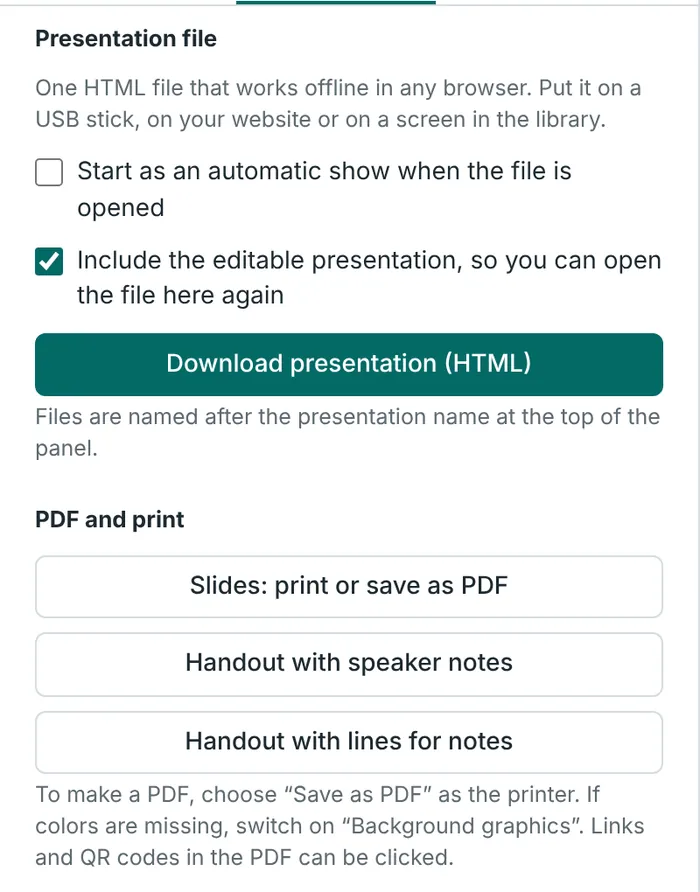
- Download presentation (HTML): one file that shows your presentation in any browser, even without internet. Put it on a USB stick or on your website, or send it by e-mail. It has all the keys from step 8, the speaker view and the overview.
- If Include the editable presentation is ticked, you can open this file in Libkit Slides again and keep working on it.
- Slides: print or save as PDF: one slide per page. In the print window, choose Save as PDF as the printer. If colors are missing, switch on Background graphics (in Chrome under More settings). Links and QR codes in the PDF can be clicked.
- Handout with speaker notes: three slides on each A4 page, with your notes next to them.
- Handout with lines for notes: three slides on each page, with lines for your audience to write on.
The files get the name of your presentation, which you can change at the top of the panel.
12. Your presentations are saved automatically
Every change is kept in your web browser. When you come back to Libkit, your last presentation is there.
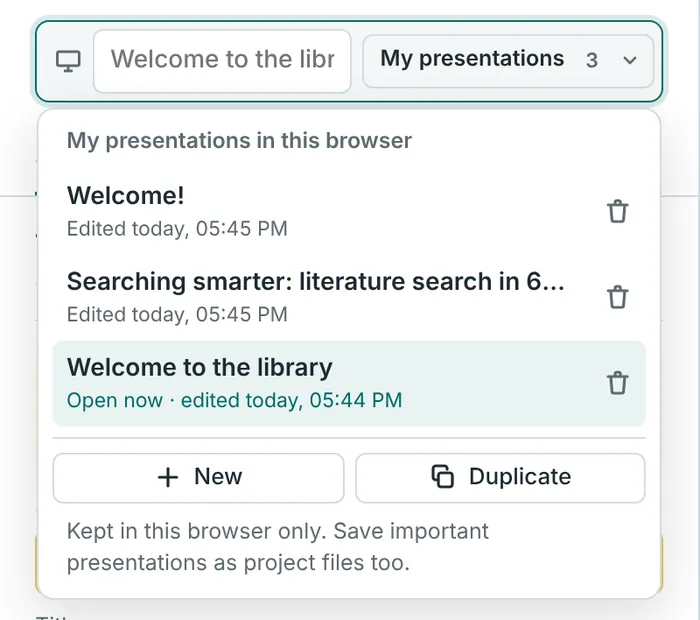
My presentations: click My presentations at the top to see all your presentations.
- Click a presentation to open it.
- New starts a new presentation from a template. It already has your logo, colors and footer.
- Duplicate makes a copy of the open presentation, for example for next semester.
- The bin deletes a presentation. Clicked it by mistake? Click Undo in the message at the bottom of the screen.
- To rename a presentation, click its name in the bar at the top and type.
Keep a backup and share with colleagues
Like flyers, your presentations are kept only in this browser on this device. For presentations that matter, keep a backup: open the Show and export tab and click Save project. A small .json file is downloaded. To continue on another computer, or to give a presentation to a colleague, open Libkit Slides there, click Open project and choose the file.
Made a mistake?
Click Undo or press Ctrl+Z (on a Mac ⌘Z). To bring a change back, click Redo or press Ctrl+Y (on a Mac ⇧⌘Z). To start again from the beginning: Show and export tab → Start over with the example. You can undo this, too.
13. On a phone or tablet
On a narrow screen, Libkit Slides shows one part at a time. Switch with the bar at the bottom of the screen:
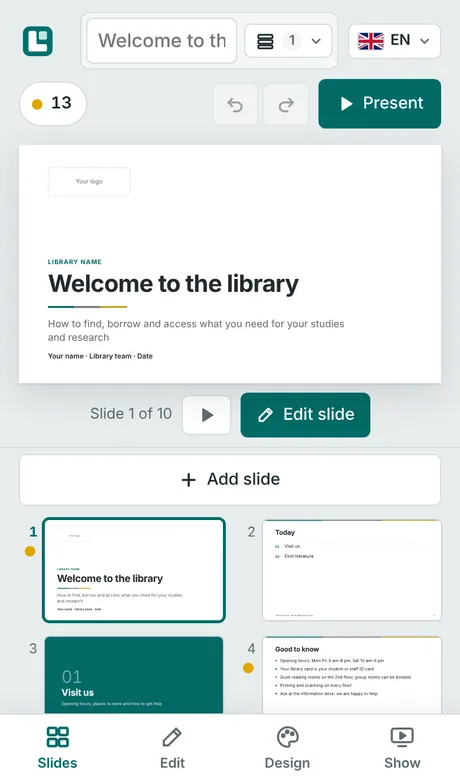
- Slides: all slides and a large preview. Tap a slide to see it, tap it again to edit it.
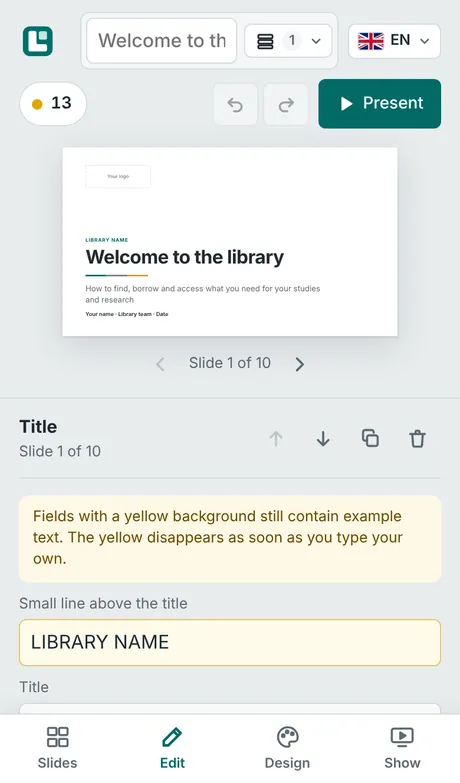
- Edit: the fields of the slide. A small preview stays at the top while you type. The arrows under it go to the previous or next slide.
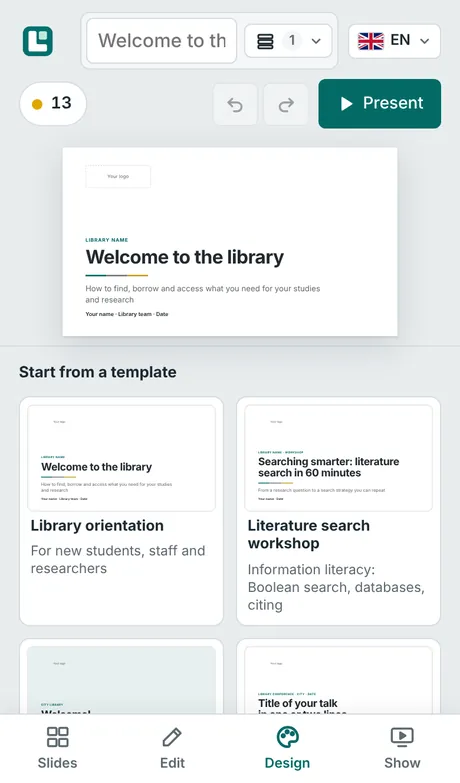
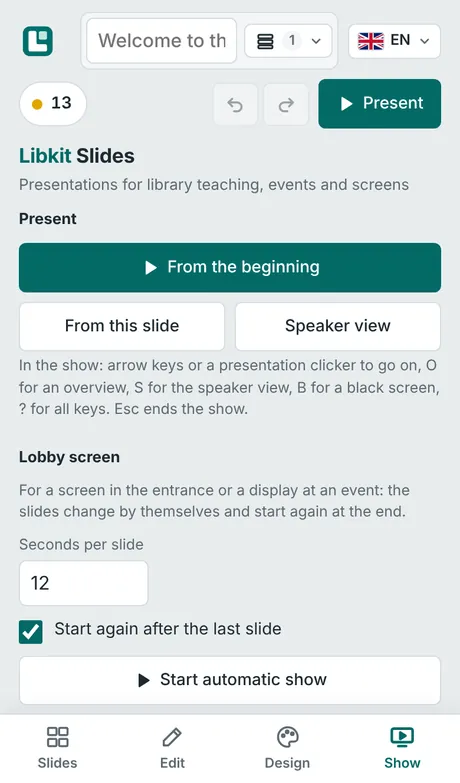
- Design and Show: the same as the Design and Show and export tabs on a computer.
To present from a phone or tablet, tap Present and then tap or swipe the slide. The buttons at the bottom of the screen go back, open the overview or the speaker view, and end the show.
Part 3
Libkit Folio
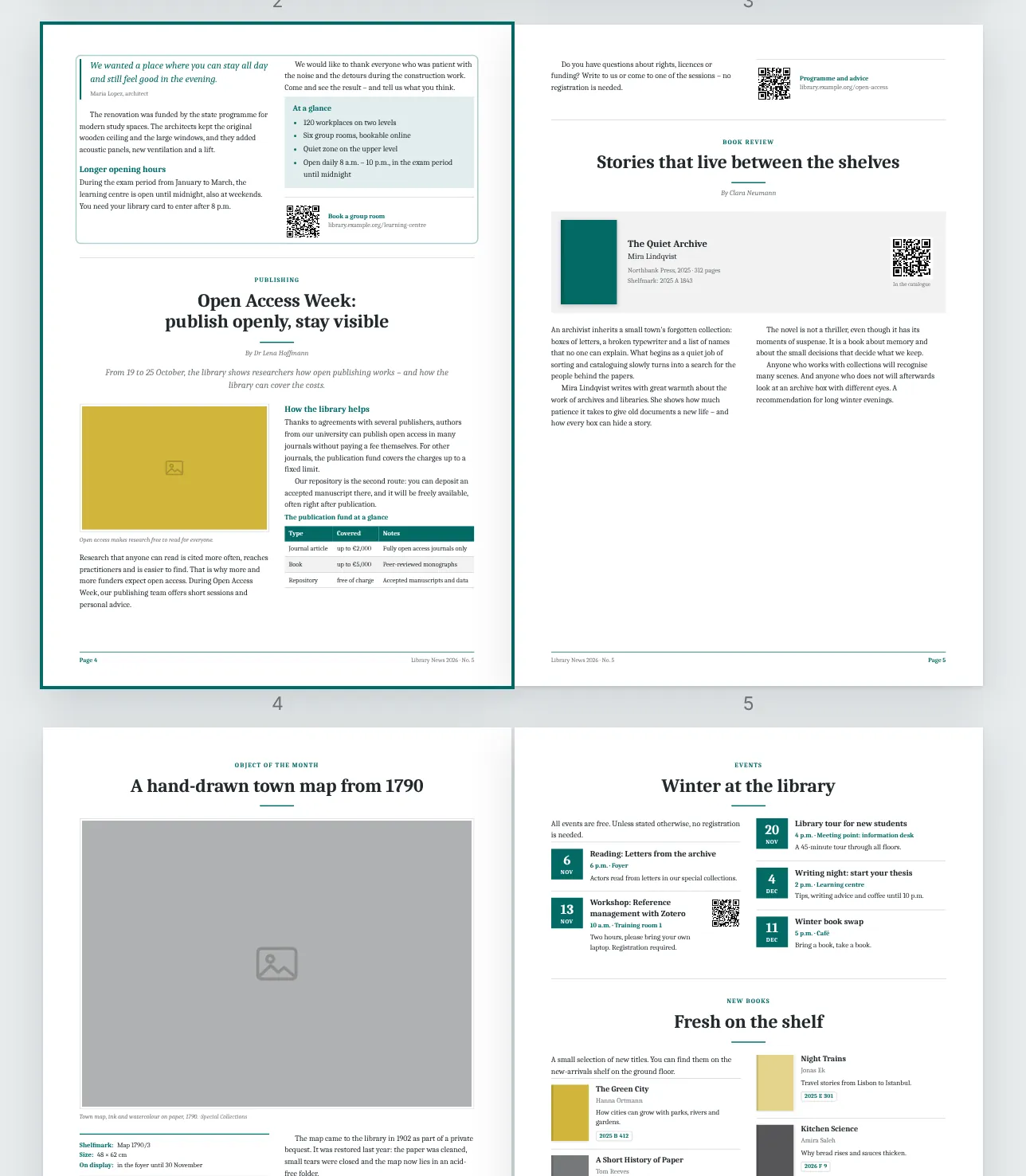
Libkit Folio lays out your library bulletin or newsletter on A4 pages. You write the texts and choose the pictures. Libkit Folio puts them into columns, makes the contents with page numbers and adds the page footers. You get a PDF for printing and a web edition for your website.
1. Find your way around
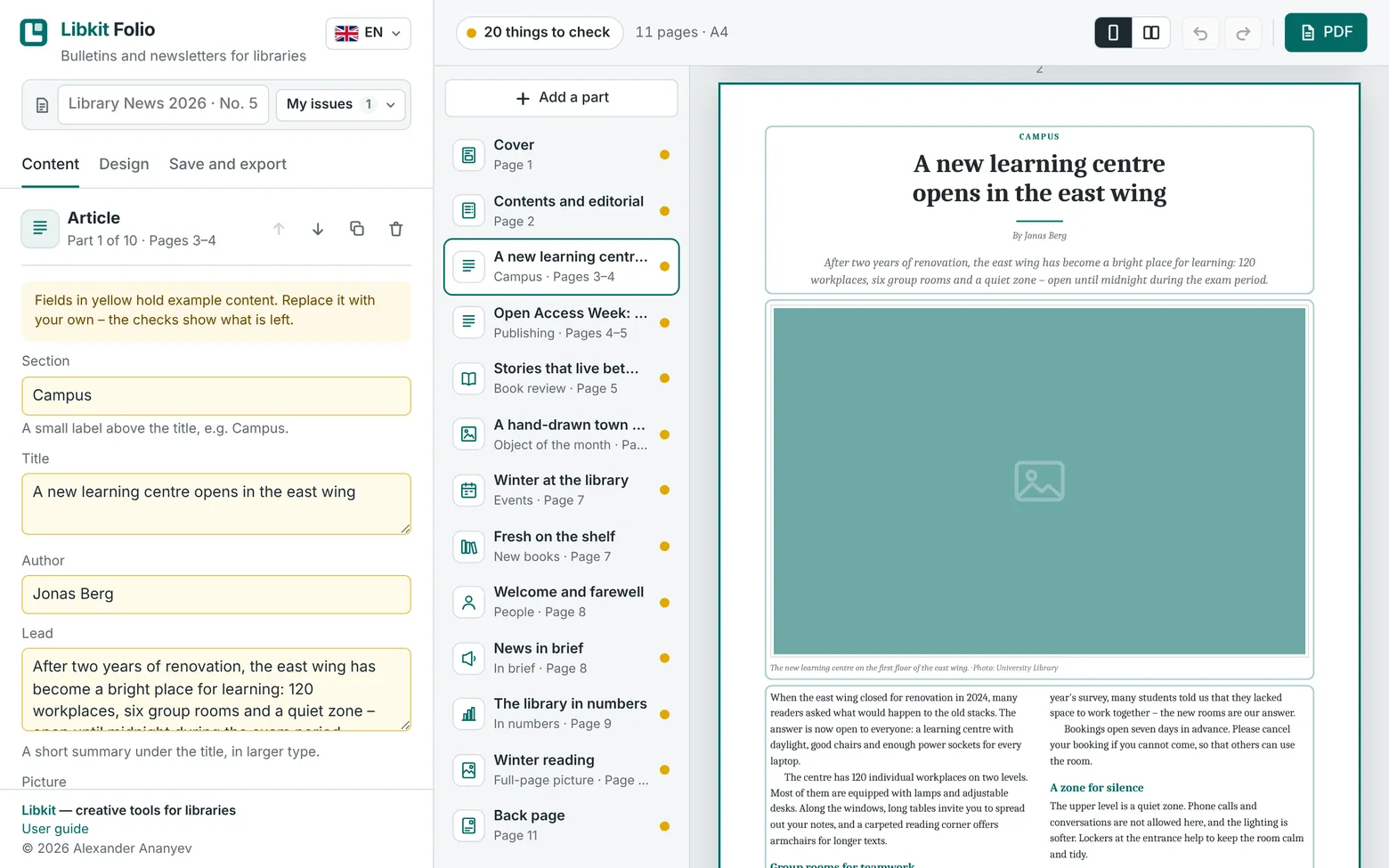 12345678910111213
- 1 Issue name and My issues. The name of the issue you are working on, and the list of all your issues.
- 2 Tabs. Content for the texts of the selected part, Design for template, colors and logo, Save and export for PDF and files.
- 3 Fields. Type here to change the selected part. A yellow field still contains example text.
- 4 Check button. Tells you what still needs your attention. Click it to see the list.
- 5 Number of pages. How many A4 pages the issue has now.
- 6 One page or facing pages. Facing pages show the issue as it looks when it is printed on both sides.
- 7 Undo and Redo.
- 8 PDF. Saves the issue as a PDF (step 7).
- 9 Parts of the issue. Cover, contents and editorial, your articles and sections, back page. Click a part to edit it. Drag a part up or down to change the order.
- 10 Add a part. Adds a new part after the selected one (step 3).
- 11 Pages. All pages of the issue, exactly as they will be printed. They change while you type. Click something on a page to edit it.
- 12 Language of the buttons.
- 13 Libkit. Back to the start page.
2. Cover, contents and back page
- Cover: the name of your bulletin (for example “Library News”), a subtitle, the issue number and date, the name of your library and a cover picture. Tick up to three parts under On the cover to show them on the cover with their page numbers.
- Contents and editorial: page 2. The contents are made automatically from your parts, with page numbers. Below them you write an editorial and the imprint. A picture credit for the whole issue goes here, too, for example “Photos: City Library, unless stated otherwise”. Then single pictures need no credit of their own.
- Back page: address, opening hours, contact and a QR code to your website. Switch it off if you don't need it.
3. Parts of an issue
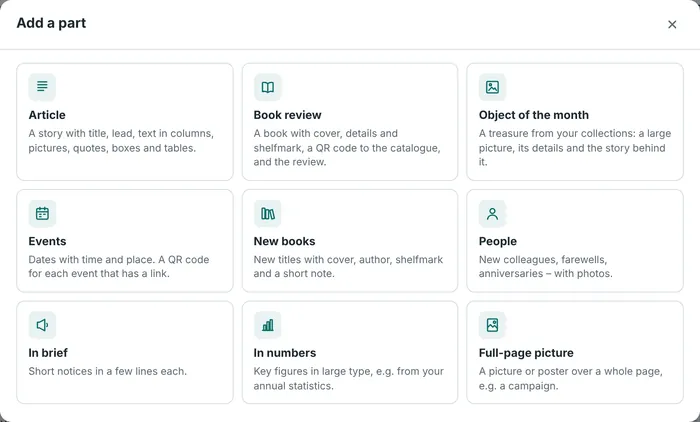
Click Add a part and choose what you want to add. Each kind of part has its own fields and its own look on the page.
| Part | Use it for |
|---|---|
| Article | A story with title, lead and text in columns. Pictures, quotes, boxes and tables in between. |
| Book review | Cover, details and shelfmark of a book, a QR code to your catalogue, and the review. |
| Object of the month | A treasure from your collections with a large picture and its details. |
| Events | Dates with time and place. A QR code for each event that has a link. |
| New books | New titles with cover, author, shelfmark and a short note. |
| People | New colleagues, farewells and anniversaries, with photos. |
| In brief | Short notices. |
| In numbers | Key figures in large type. |
| Full-page picture | A poster or a photo over a whole page. |
At the end of each part, Place in the issue sets where it starts: Automatic starts a new page when the current page is more than half full, New page always starts on a new page, and Continue puts the part right after the one before. Hide in this issue keeps a part for later without printing it.
4. Write the text
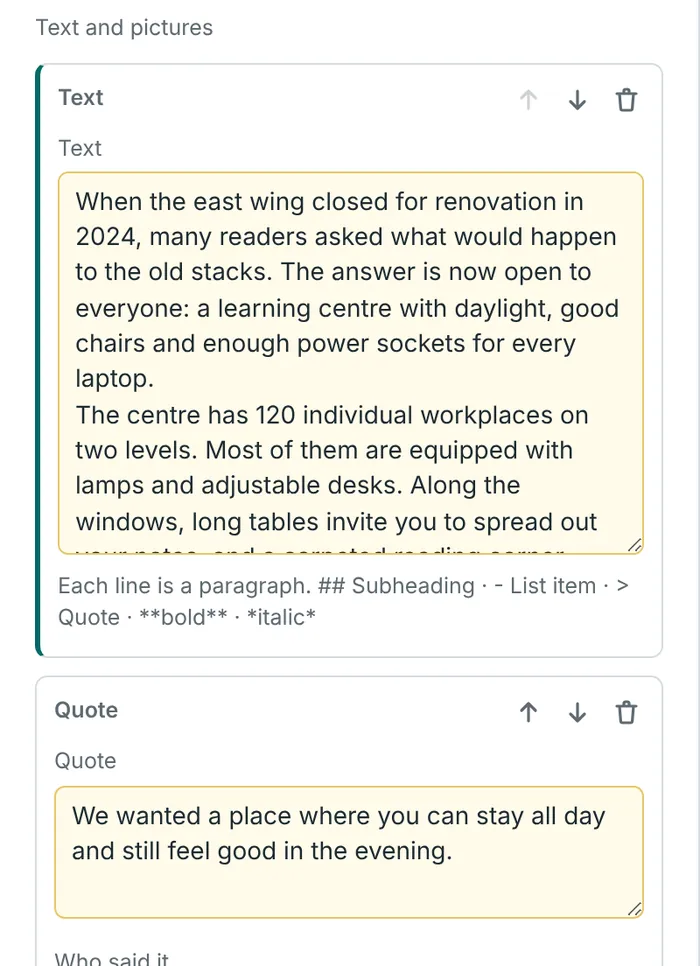
Type or paste your text into the Text fields. Each line becomes a paragraph. A few signs give you more:
| You type | You get |
|---|---|
## Opening hours | A subheading |
- Six group rooms | A list item |
1. Register online | A numbered item |
> A quote | A quote. A line > — Name after it says who said it. |
**bold**, *italic* | bold, italic |
Web addresses and e-mail addresses in the text become links in the PDF. The Link field at the end of a part prints a QR code.
In an article, the buttons under Add insert more text, a picture, a box (for example “At a glance”), a quote or a table. Tick Across all columns for a large picture.
Pictures
- Click Choose picture…. Large photos are made smaller automatically, so the issue stays light but still prints sharply.
- Write a short description of every picture. The web edition and screen readers use it.
- Add a credit, for example “Photo: Anna Weber”, or one credit line for the whole issue in the imprint.
- Photos of people: please make sure the people shown agree to be published. The check reminds you.
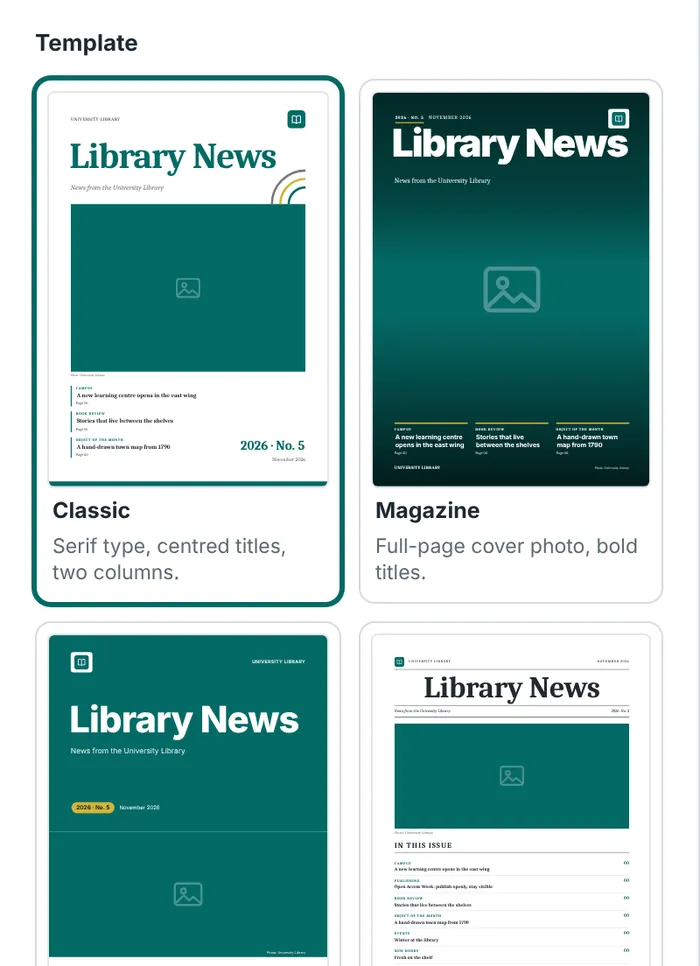
5. Templates and design
Open the Design tab and choose a template:
| Template | Looks like |
|---|---|
| Classic | Serif type, centred titles, two columns, framed pictures. |
| Magazine | A full-page cover photo, bold titles, large first letters. |
| Modern | A block of colour on the cover, rounded shapes. |
| Newspaper | A name plate on page 1 and three columns. No separate cover. |
| Report | Large numbers and a calm look, good for annual reports. |
| Studio | Light type and a picture mosaic on the cover. |
| Newsletter | A coloured band on page 1, compact, easy to print in-house. |
| Large print | One column and large type, easy to read. |
Below the templates you find the colours (or your own colours), your logo, the type, the text size, the number of columns, page numbers and the language of the issue. The language of the issue is used for words like “Page” and “Contents” and for hyphenation.
In Libkit, Use logo and colours from Libkit takes them from your last flyer or presentation.
6. Check your issue
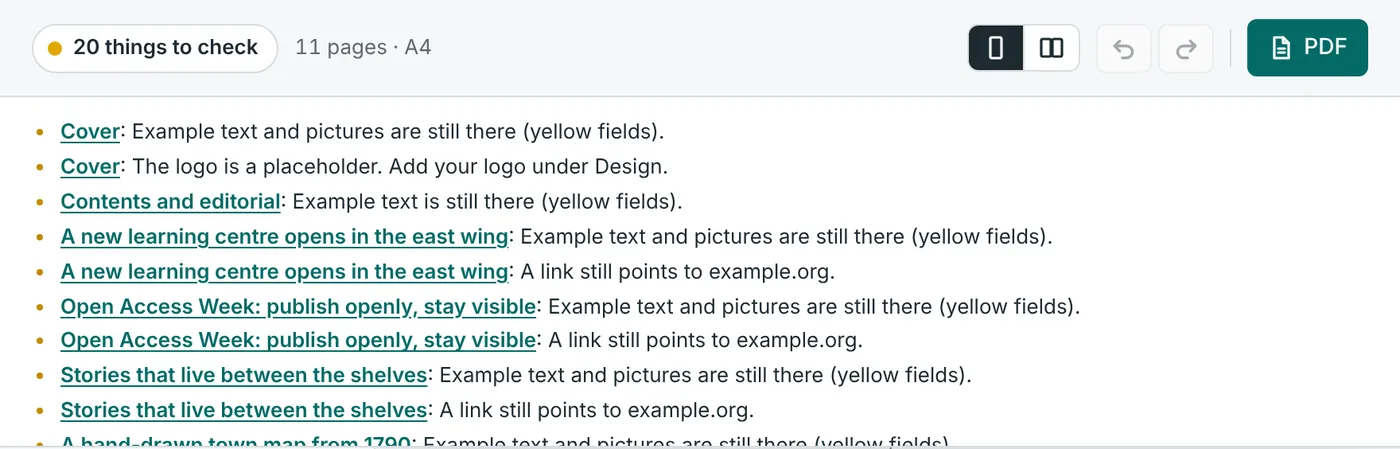
The check button at the top tells you what still needs your attention: example text and pictures, pictures without a description or credit, pictures too small for sharp print, links that still point to example.org, and text that does not fit. Click a name in the list to go to that part.
7. PDF, web edition and the next issue
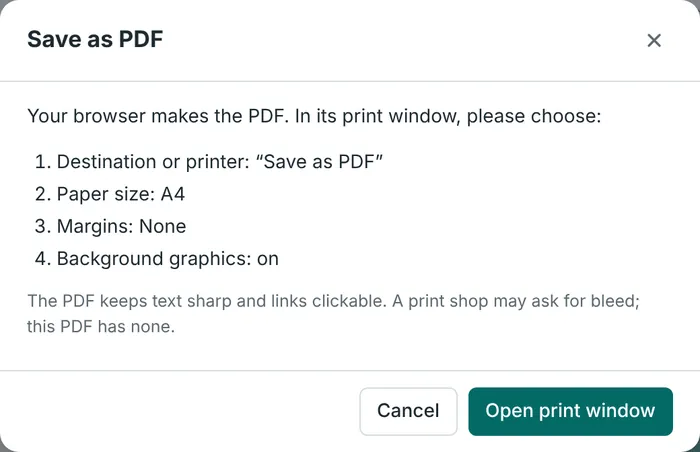
- PDF: click PDF at the top. Your browser opens its print window. Choose Save as PDF, paper size A4, margins None, and switch on Background graphics. Links and QR codes in the PDF can be clicked.
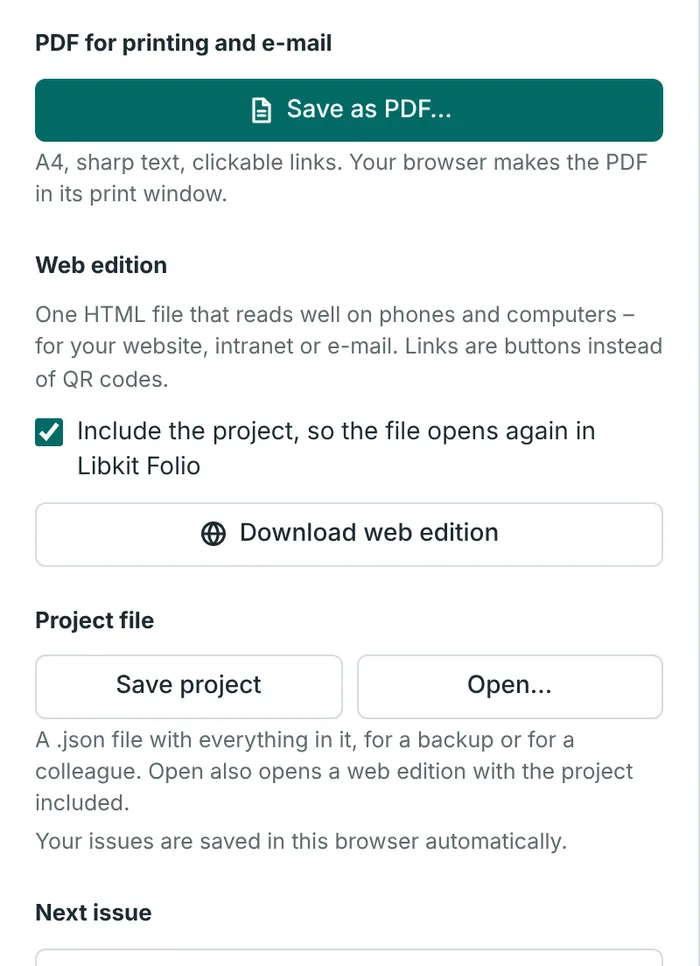
- Web edition: on the Save and export tab, click Download web edition. You get one HTML file that reads well on phones and computers, for your website, intranet or an e-mail. Links are buttons instead of QR codes. If Include the project is ticked, the file opens in Libkit Folio again.
- Next issue: Start the next issue keeps the design, the name, the imprint, the back page and your regular sections, without the texts of the last issue. The issue number and date are yellow, so you don't forget to change them.
Tip: for printing on both sides, an even number of pages is best. The check tells you when the number is odd.
8. Your issues are saved automatically
Like flyers and presentations, your issues are kept in this browser. My issues at the top lists them. Open, duplicate or delete an issue, or start a new one: the next issue, an empty issue or the example.
For a backup, or to give an issue to a colleague, click Save project on the Save and export tab and keep the .json file. Open… opens it again, and also a web edition that includes the project.
9. On a phone or tablet
On a narrow screen, Libkit Folio shows one part at a time. Switch with the bar at the bottom of the screen:
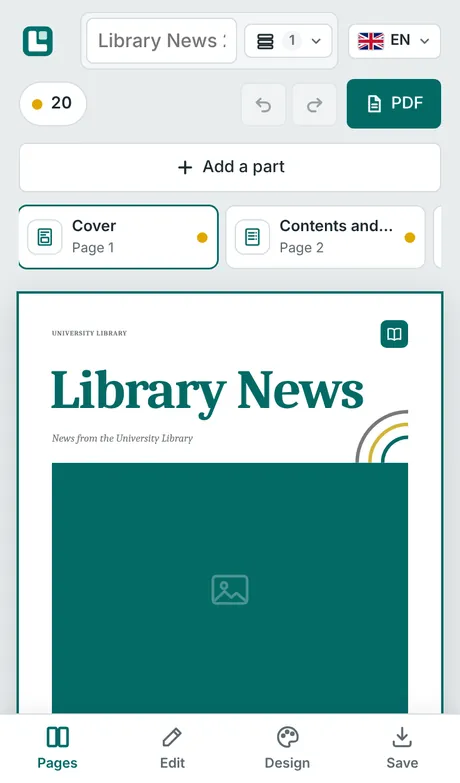
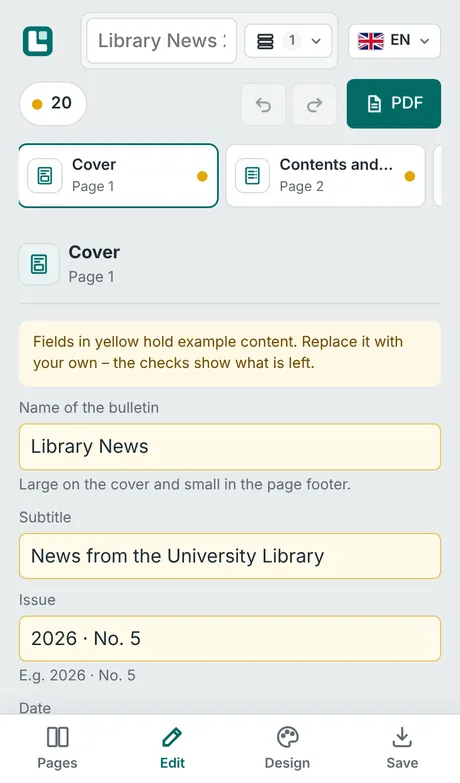
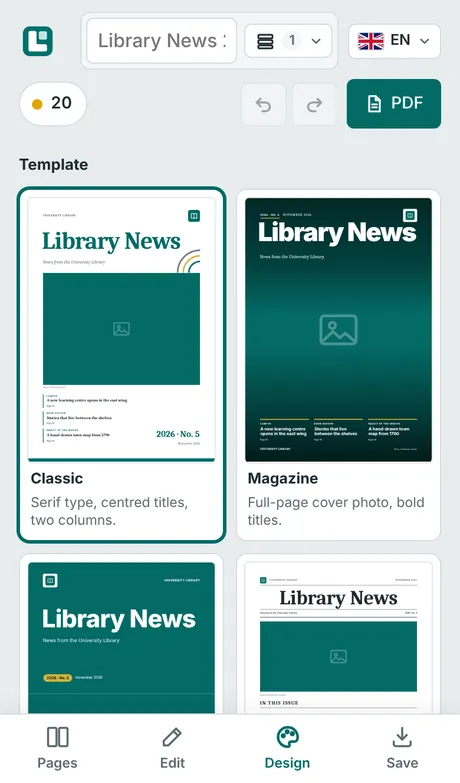
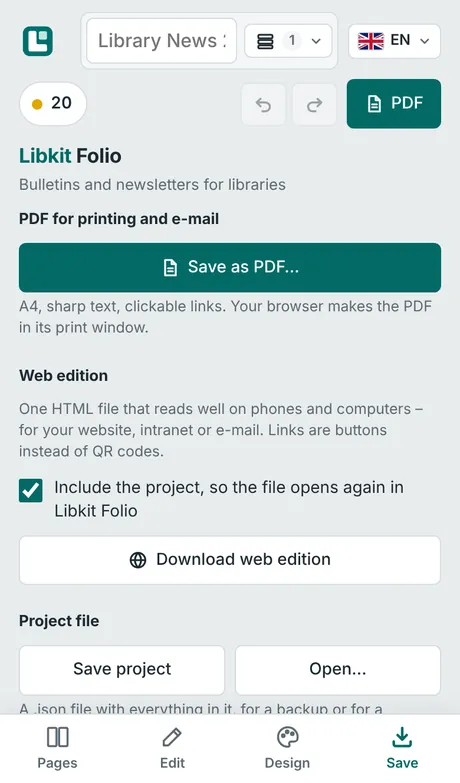
- Pages: the parts of the issue and all pages. Tap a part to go to its page, tap it again to edit it.
- Edit, Design and Save: the same as the tabs on a computer.
Part 4
The tools together
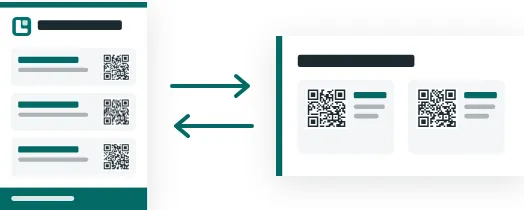
The tools know each other. Your logo, colors and links come along when you move your work from one to the other. The original stays as it is.
Flyer → slides
For a library introduction, or for the screen in the entrance hall.
- In Libkit Flyers, click Make slides at the top, or on the Save and export tab.
- Libkit Slides opens with a new presentation: a title slide and a slide with QR codes for each section of your flyer.
- Check the slides and add your speaker notes.
Slides → flyer
A handout people can take home after your talk.
- In Libkit Slides, open the Show and export tab.
- Under Libkit Flyers, click Make a flyer from these slides.
- Libkit Flyers opens with a new A4 flyer. The resources and events with QR codes from your slides become its sections.
Logo and colors → bulletin
Your bulletin looks like your flyers and slides.
- In Libkit Folio, open the Design tab.
- Click Use logo and colours from Libkit.
- Libkit Folio takes them from the flyer or presentation you worked on last.
A colleague sent you a flyer project file (.json)? In Libkit Slides, Show and export → Open a Libkit Flyers project turns it into slides, too.
Questions and answers
- My flyer, presentation or bulletin is gone!
- You probably opened Libkit in a different browser, on a different computer or in a private window. Open it again in the browser you used before, or click Open project and choose your saved
.jsonfile. - Where is my work kept?
- In the web browser on your device. That is why it is good to save important work as project files (flyers, presentations, bulletins).
- The content of my flyer doesn't fit on one page.
- Shorten the descriptions, remove a resource, choose Small QR codes on the Design tab, or switch to Two columns.
- The text on a slide is very small.
- There is too much on the slide. Split it in two, or shorten the points. The line under the preview shows how much the text was made smaller.
- A QR code doesn't scan.
- Use dark QR codes on a white background and a shorter link if you can. On a flyer, choose a larger QR code size. For slides, test the code from the back of the room. The check button warns you about codes that are hard to scan.
- Some of our links only work inside our network.
- That's fine, but readers outside need VPN. The check list reminds you of such links.
- The speaker view opens in the same window.
- Your browser blocked the second window. Allow pop-ups for libkit.org in your browser, or use the speaker view in the same window: press S to switch.
- My clicker doesn't work.
- Click once on the slides, so that the window is active. Most clickers send the arrow or Page Down keys, which Libkit Slides understands.
- Can I open PowerPoint files?
- No. But you can paste the text of your slides as a text outline.
- I can show a downloaded presentation, but not edit it.
- It was downloaded without the editable presentation. Tick Include the editable presentation before you download it next time.
- My bulletin has empty space at the bottom of a page.
- A part starts on a new page when the page before is more than half full, so that titles don't end up at the bottom. For a part that should follow right after the one before, choose Continue under Place in the issue. A picture or a box also fills the space nicely.
- The PDF of my bulletin has white edges or no colors.
- In the print window, choose margins None and switch on Background graphics (in Chrome under More settings).
- Can Libkit Folio make A5 booklets?
- Not yet. Libkit Folio makes A4 pages. Many printers and print shops can print two A4 pages on one A3 sheet as a booklet.
- Does it cost anything?
- No. Libkit is free for every library. You are welcome to tell other libraries about it.